Windows System Optimization
Game Mode Activation: Navigate to Settings → Gaming → Game Mode and enable it. This prioritizes CPU and GPU resources for active games while suppressing background processes and notifications. Mid-range systems typically see 5-10% FPS gains in competitive titles where consistent frame pacing matters.
Power Plan Configuration: Windows’ default “Balanced” plan throttles CPU and GPU clocks to save energy. Switch to “High Performance” in Settings → System → Power & Battery. Advanced users can unlock “Ultimate Performance” by running powercfg -duplicatescheme e9a42b02-d5df-448d-aa00-03f14749eb61 in Command Prompt (admin), which prevents CPU parking and maintains maximum clock speeds.
Background Process Management: Press Ctrl+Shift+Esc to open Task Manager before gaming. Close Chrome/Edge tabs, Discord, and streaming software if not needed. Disable startup programs in the “Startup apps” tab, each background process consumes RAM and CPU cycles that reduce available resources for games.
Driver and Display Configuration
GPU Driver Updates: NVIDIA, AMD, and Intel release game-specific optimizations and bug fixes. For clean installations, use Display Driver Uninstaller (DDU) before installing new drivers to prevent conflicts from residual files. Driver updates alone can resolve stuttering and provide 10-15% performance improvements in recently released games.
Refresh Rate Verification: Check Settings → System → Display → Advanced Display to confirm your monitor runs at its maximum refresh rate (144Hz, 165Hz, etc.). Many systems default to 60Hz despite higher-rated displays. Enable Hardware-Accelerated GPU Scheduling in the same menu to reduce CPU overhead and improve frame time consistency.
Graphics Settings Hierarchy
Shadow Quality Reduction: Real-time shadows consume disproportionate GPU resources. Lowering shadows from “Ultra” to “High” or “Medium” typically provides the largest single-setting FPS increase (15-25%) with minimal visual degradation, as shadow detail remains acceptable at mid-tier settings.
Anti-Aliasing Adjustment: MSAA (Multi-Sample Anti-Aliasing) multiplies rendering workload by sampling multiple points per pixel. Switch to FXAA (Fast Approximate Anti-Aliasing) for a lightweight alternative, or disable AA entirely if targeting 1440p/4K resolutions where pixel density naturally reduces jagged edges. This can recover 10-20% performance.
Texture and Post-Processing Balance: Ultra textures require 8GB+ VRAM and offer marginal quality improvements over High settings. Reduce texture quality if your GPU has 6GB or less VRAM to prevent stuttering from memory overflow. Disable motion blur and ambient occlusion—these post-processing effects blur clarity in fast-paced shooters while consuming 5-10% GPU resources.
Frame Rate Management
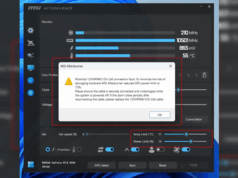
V-Sync and Frame Caps: V-Sync eliminates screen tearing but introduces input lag by forcing frame timing synchronization. Disable in-game V-Sync and use MSI Afterburner‘s RivaTuner to cap frame rates at your monitor’s refresh rate minus 3 FPS (e.g., 141 FPS for 144Hz). This prevents GPU overwork while maintaining responsive input.
Performance Validation
Enable in-game FPS counters or use MSI Afterburner’s OSD to monitor real-time performance. Test changes individually in repeatable scenarios (same map location, same time of day) to isolate each setting’s impact. Record average FPS and 1% lows—the latter indicates frame time consistency, which affects perceived smoothness more than average FPS.
Benchmark before and after each change. If a setting yields negligible gains (under 3-5 FPS), revert it to maintain visual quality. The goal is optimizing the performance-to-visuals ratio for your specific hardware rather than blindly minimizing all settings.
Maintenance Strategy
Update GPU drivers monthly when new games launch. Review Task Manager startup programs quarterly to prevent accumulation of unnecessary background services. Re-verify monitor refresh rates after Windows updates, which occasionally reset display settings to defaults.
These optimizations work cumulatively—combining system configuration, driver maintenance, and graphics tuning typically yields 30-50% FPS improvements on mid-range hardware (GTX 1660 Super/RX 5600 XT tier). Results vary by game engine and hardware generation, but the methodology applies universally across PC gaming.
Follow us on Bluesky , LinkedIn , and X to Get Instant Updates