Google’s Antigravity AI coding platform experienced a 9-hour service disruption on December 25-26, 2025, when elevated agent termination errors affected users globally. The outage stemmed from the platform hitting an unanticipated global quota limit that Google engineers believed was set sufficiently high to accommodate holiday usage. The company increased the quota limit substantially following the incident and apologized for the disruption, noting they were “glad to see usage increasing over the holidays” despite the infrastructure strain.
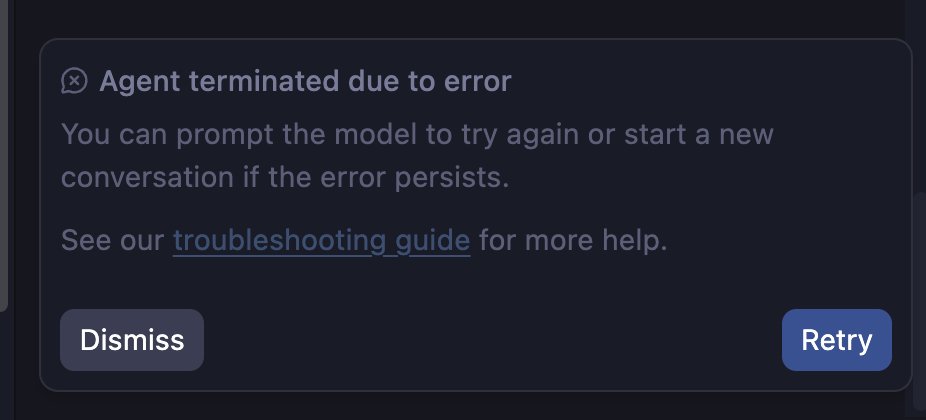
Thousands of developers encountered the “Agent terminated due to error” message — a gray dialog box that halts all AI agent execution and blocks project continuation. The issue affected both free and paid subscribers indiscriminately, with users reporting the error appeared mid-task even when they hadn’t exhausted individual user quotas, suggesting a platform-wide infrastructure limitation rather than account-specific restrictions.
Understanding the “Agent Terminated” Error
When Google Antigravity displays the termination message, it typically indicates one of three conditions: model overload from excessive backend traffic, quota exhaustion at either the user or platform level, or permission/execution deadlocks the autonomous agent cannot resolve. The December 25-26 outage specifically involved the third scenario — a global quota cap that limited total concurrent agent operations across all users worldwide, creating artificial scarcity unrelated to individual usage patterns.
| Error Type | Symptom | Root Cause |
|---|---|---|
| Model Overload | “Generating…” indefinitely, then termination | Gemini 3 Pro backend receiving too much traffic |
| User Quota Exhausted | Error after sustained usage within 5-hour window | Individual work-based quota limit reached |
| Global Quota Hit (Outage) | Error affects all users simultaneously | Platform-wide infrastructure limit exceeded |
| Permission Deadlock | Agent crashes attempting sudo/protected commands | Insufficient privileges for autonomous execution |
Immediate Fix: Don’t Restart—Type “Continue”
When the “Agent terminated due to error” dialog appears, resist the instinct to close the IDE or restart the application. According to community troubleshooting guides documented at antigravity.codes, the most effective immediate response is typing “continue” or “proceed” directly into the agent chat window. Users report this command often “wakes” the agent and forces a retry without losing conversation context or workspace state.
This workaround exploits how Antigravity’s autonomous agent architecture handles interruptions. The agent doesn’t truly crash—it enters a suspended state waiting for resolution. Providing an explicit continuation command signals the agent to attempt the failed operation again, often succeeding on retry if the underlying issue (like temporary API unavailability) has resolved. If “continue” fails after 2-3 attempts, the problem likely requires deeper intervention.
Model Switching: Downgrade to Avoid Peak Load
If the agent repeatedly terminates with overload messages, switch from Gemini 3 Pro to Gemini 3 Flash or lower-tier models. Click the model picker — typically located in the bottom-left corner of the Editor View or top-right of the Agent Manager — and select “Standard” or “Gemini 3 (Low).” Lighter models handle requests more reliably during peak usage periods when Pro-tier capacity is strained.
This strategy sacrifices reasoning depth for reliability. Gemini 3 Flash completes straightforward coding tasks—like generating boilerplate, writing tests, or fixing syntax errors—nearly as well as Pro but consumes less backend compute. Reserve Gemini 3 Pro for genuinely complex tasks requiring multi-step reasoning or architectural decisions where the advanced model’s capabilities justify potential delays.
Model Selection Best Practices
- Gemini 3 (Low): Use for routine edits, documentation, simple bug fixes. Burns minimal quota and rarely hits capacity limits.
- Gemini 3 Flash: Default for most coding workflows. Balances capability with reliability during normal traffic.
- Gemini 3 Pro: Reserve for complex refactoring, architectural planning, or multi-file changes requiring deep context.
- Claude Sonnet 4.5: Alternative for documentation-heavy tasks. Excels at generating detailed explanations and API references.
- GPT-OSS: Fastest for rapid prototyping and throwaway code experiments where perfection isn’t required.
Restart the Agent Service (Not the Entire IDE)
When the agent becomes completely unresponsive—spinning indefinitely without producing output or crashing immediately on new prompts—the background service likely hung. Open the Command Palette (Ctrl+Shift+P on Windows/Linux, Cmd+Shift+P on Mac), type and select “Antigravity: Restart Agent Service,” then wait 15-30 seconds for the Mission Control dashboard to reload.
This targeted restart preserves your workspace state, open files, and Editor View context while only cycling the background process that handles agent execution. Restarting the entire IDE—closing and reopening the application—clears cached context and forces re-authentication, creating unnecessary friction. The service restart offers a surgical fix that resolves most hung-state issues without data loss.
Check Output Panel for Diagnostic Details
Navigate to View → Output and select “Antigravity Agent” from the dropdown menu to reveal low-level diagnostic logs showing exactly what failed. Look for “Access Denied,” “EPERM,” or “quota exceeded” messages immediately preceding termination. These logs distinguish between genuine errors (like permission failures) and transient infrastructure issues (like temporary API unavailability).
If the logs show “Access Denied” errors, the agent attempted to execute a command requiring elevated privileges—such as sudo operations, chmod modifications, or accessing protected system directories. The fix requires manually running the blocked command in your terminal with appropriate permissions, then instructing the agent “I have run the command manually. Proceed with the next step.”
Spawn Fresh Agent to Clear Corrupted Context
Extended agent sessions spanning hours with massive documentation files or complex multi-step workflows can corrupt the context window, causing persistent termination errors even after model switches and service restarts. In the Agent Manager view, click “New Agent” or “Spawn Sub-Agent” to start a fresh context for your next task without the baggage of accumulated conversation history.
This approach mirrors the concept of restarting a conversation in ChatGPT or Claude to clear confusion. Antigravity agents maintain context across all prior interactions in a session, including failed attempts and partial executions. Starting fresh eliminates accumulated errors that might be triggering false failures, though you’ll lose the current agent’s memory of earlier work in the same session.
Logout/Login Fix for Persistent Issues
Community members report success resolving persistent agent errors by completely logging out of Antigravity, closing the application, then reopening and logging back in. This nuclear option clears all cached authentication tokens, session state, and server-side associations that might be causing conflicts. While more disruptive than targeted fixes, it addresses edge cases where corrupted authentication or stale credentials trigger false quota errors.
The effectiveness of this approach during the December 25-26 outage was inconsistent—some users reported immediate resolution while others saw no change, suggesting individual account state variations. However, as a troubleshooting step for ongoing issues post-outage, it remains valuable for clearing any lingering corruption from the global quota incident.
Understanding Antigravity’s Quota System
Unlike traditional APIs that count requests or tokens, Antigravity uses “work-based” quotas measuring the computational complexity of tasks. Browser agent operations—launching automated testing, navigating web UIs, capturing screenshots—consume significantly more quota than simple code edits. Complex reasoning tasks with “High” thinking mode burn through allocations far faster than straightforward implementations using “Low” mode.
Google AI Pro and Ultra subscribers receive the “highest, most generous rate limits” with quotas refreshing every 5 hours. Free tier users operate under weekly limits designed to “minimize hitting rate limits quickly during a project” by providing a larger pool distributed across 7 days rather than multiple smaller daily allocations. However, both tiers share the same underlying infrastructure, making them equally vulnerable to platform-wide quota incidents like the December 25-26 outage.
Preventing Future Quota Issues
Plan intensive coding sessions around the 5-hour quota refresh cycle. If you know you’ll need sustained agent access, start work immediately after a refresh window—typically at midnight, 5 AM, 10 AM, 3 PM, and 8 PM local time for paid subscribers. Free users should batch weekly work into focused blocks rather than spreading usage across daily ad-hoc sessions that risk hitting caps mid-project.
Disable automatic browser testing for simple tasks that don’t require UI validation. The browser subagent—Antigravity’s automated web testing component—consumes disproportionate quota relative to its utility on basic CRUD operations or API-only work. Reserve browser automation for features genuinely requiring visual verification or complex user interaction flows where manual testing would be prohibitively time-consuming.
What to Watch For in 2026
Google’s acknowledgment that the global quota limit was set incorrectly suggests Antigravity’s infrastructure remains in active tuning as adoption scales beyond initial projections. The platform launched in public preview in November 2025 and has seen “incredible demand” according to official statements, likely exceeding internal capacity planning models. Additional outages or quota tightening remain possible as Google balances accessibility against compute costs.
The company announced plans for a quota dashboard “coming soon” that will let users track consumption in real-time rather than guessing when they’re approaching limits. This transparency feature—standard in most API-based services but absent from Antigravity’s initial release—should reduce surprise terminations and help developers plan work sessions more effectively when it eventually ships.
Alternative Workflows During Outages
Antigravity supports configuring local models like Ollama or custom API endpoints through Settings → AI Models, allowing offline work when Google’s servers are unavailable or quotas are exhausted. While local models lack the capability of Gemini 3 Pro, they provide fallback functionality for basic code generation and refactoring that keeps workflows moving during service disruptions.
Developers working on deadline-critical projects should maintain parallel development environments outside Antigravity—traditional IDEs like VS Code with GitHub Copilot, Cursor, or JetBrains AI Assistant. These alternatives may lack Antigravity’s autonomous agent architecture, but they provide resilience against single-platform dependency risks illustrated by the 9-hour December outage that left pure Antigravity users completely blocked.
Follow us on Bluesky, LinkedIn, and X to Get Instant Updates