What You Need Before Starting
- An iPhone running iOS 16 or later
- Your Apple ID password or device passcode
- An IPA file of the app you want to sideload (for the final step)
Step 1: Enable Developer Mode
This setting is built directly into your iPhone. No external tools or devices needed to make it appear.
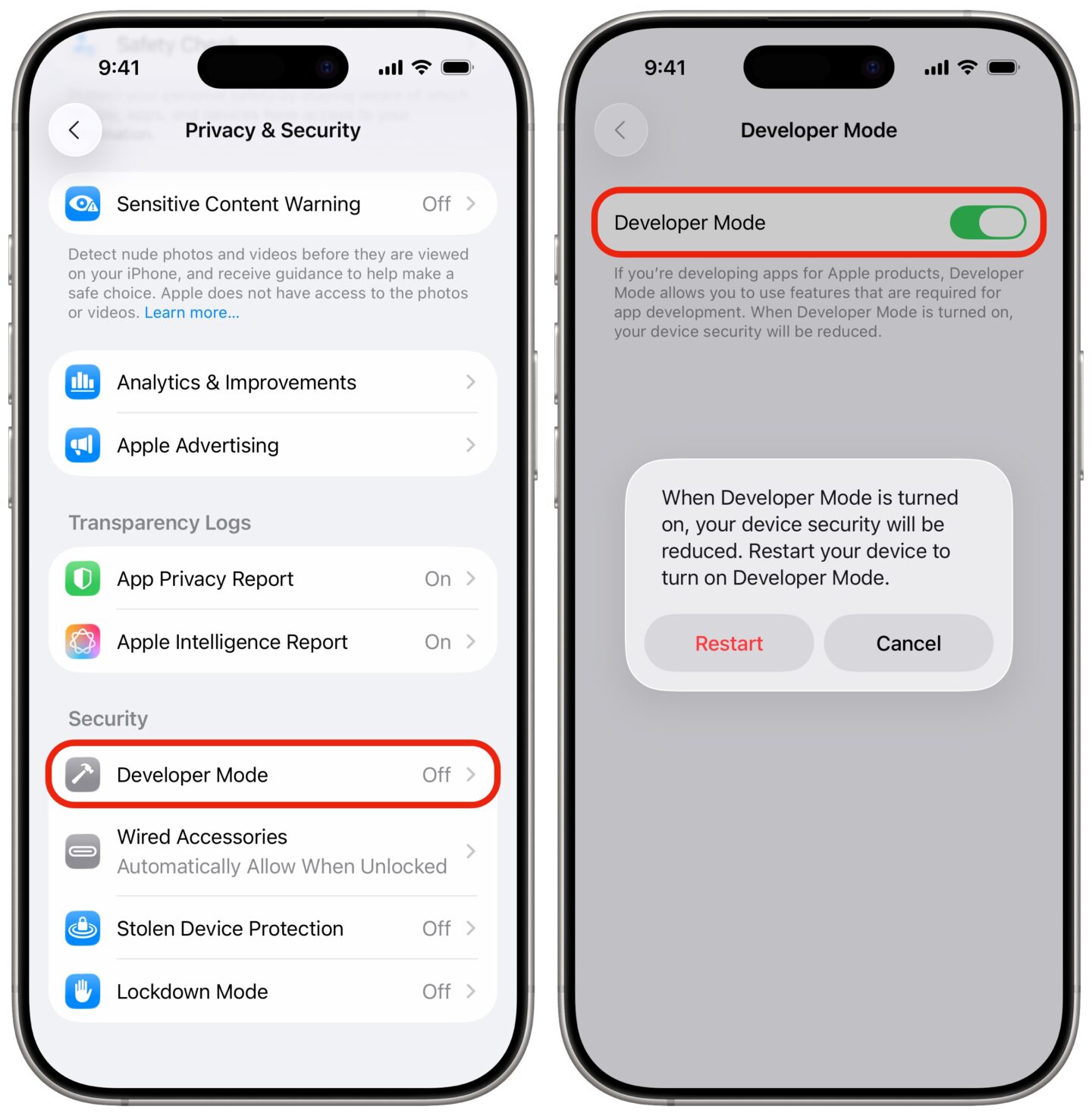
- Open Settings on your iPhone
- Scroll down and tap Privacy & Security
- Scroll to the bottom and tap Developer Mode
- Toggle the switch On
- Tap Restart when prompted
Your iPhone will restart to apply the changes. Once it boots back up, Developer Mode is active and ready to use.
Step 2: Trust the App Developer Certificate
Before an unsigned or third-party app can run, your iPhone needs to trust the developer certificate associated with it. This is a one-time step per developer profile.
- Open Settings
- Tap General
- Scroll down and tap VPN & Device Management
- Under Device Supervision or Developer Apps, tap the developer profile name linked to your sideloaded app
- Tap Trust and confirm with your passcode
This step only appears after you’ve attempted to open a sideloaded app for the first time. If you haven’t installed an app yet, this option won’t show up.
Step 3: Sideload Your App
With Developer Mode enabled and your certificate trusted, you can now install apps from outside the App Store. The most straightforward method is using a tool like Sideloadly.
- Download and install Sideloadly on your Mac or Windows PC
- Connect your iPhone via USB and trust the computer when prompted
- Drag your .ipa file into the Sideloadly window
- Select your iPhone from the device dropdown
- Sign in with your Apple ID (a free account works)
- Tap Start and wait for the installation to complete
Once installed, open the app on your iPhone. If it prompts you to trust the developer, follow Step 2 above.
Developer Workflow: Deploying Directly from Xcode
If you’re an actual developer testing your own app, there’s a more direct route. Connect your iPhone to a Mac running Xcode, select your device as the build target, and hit Run. Xcode handles signing and deployment automatically. This bypasses tools like Sideloadly entirely and is the standard workflow for IDE-based app testing.
A Note on TestFlight
For most beta testing scenarios, Apple’s own TestFlight platform is the better option. It distributes beta apps through the App Store without requiring Developer Mode or sideloading. Developer Mode is specifically needed when you’re running unsigned code or apps from sources outside Apple’s distribution channels.
Security Considerations
Enabling Developer Mode and sideloading allows unvetted software to run on your device. Apps installed this way bypass App Store review entirely. Only install applications from sources you explicitly trust. If something feels off, you can revoke developer certificates at any time through Settings → General → VPN & Device Management.
Follow us on Bluesky , LinkedIn , and X to Get Instant Updates