Prerequisites:
- Windows 11 (Home, Pro, or Enterprise)
- Administrator access
- At least 8GB RAM (16GB recommended)
- WSL2 enabled
- Docker Desktop installed
Step 1: Enable WSL2
WSL2 provides a full Linux kernel that enables Kubernetes to run natively on Windows. If you haven’t already set it up:
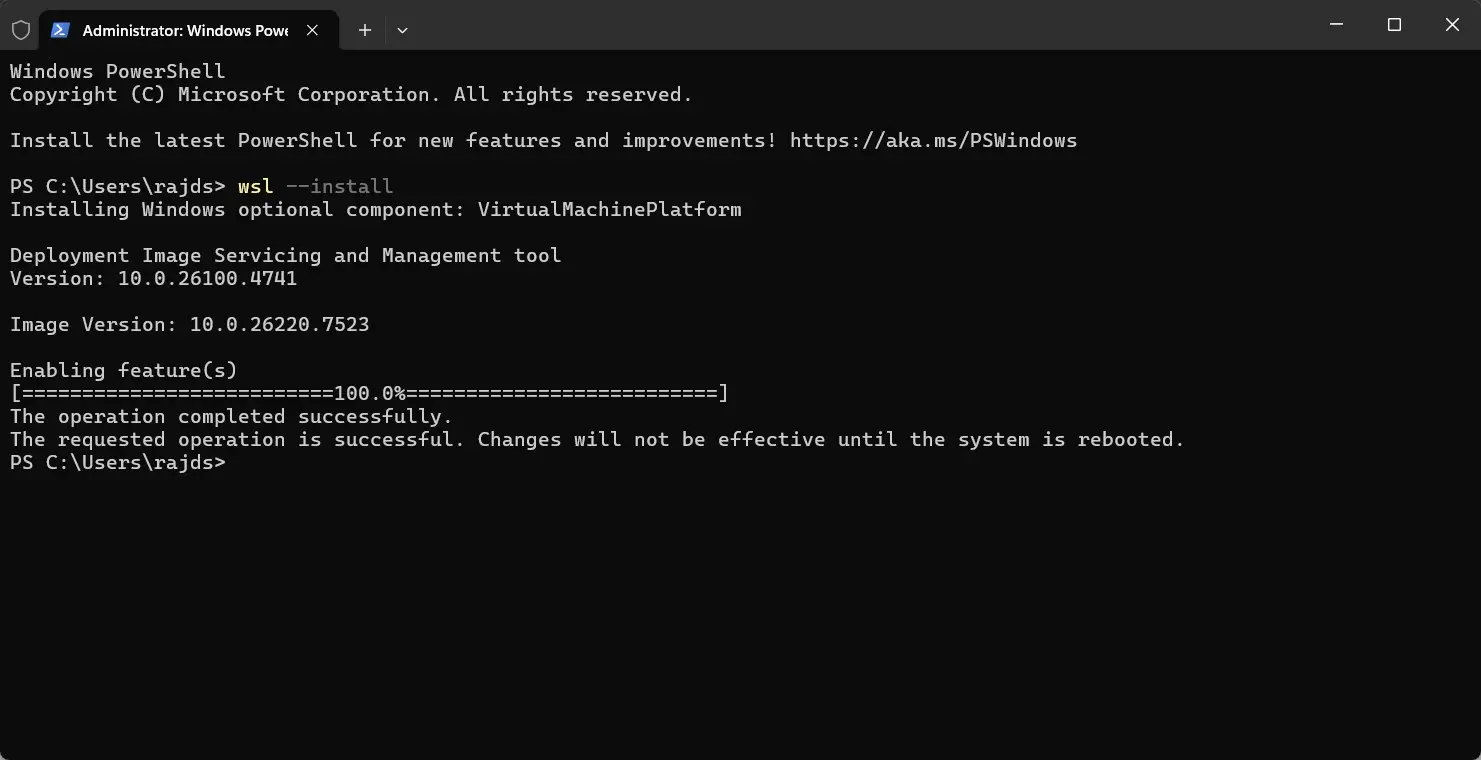
Enable WSL and install Ubuntu:
wsl --installThis command installs WSL2 and Ubuntu by default. Restart your computer when prompted.
Verify WSL2 is active:
wsl --set-default-version 2
wsl -l -v
You should see version “2” next to your Ubuntu distribution. If not, set it manually:
wsl --set-version Ubuntu 2Step 2: Install Docker Desktop
Docker Desktop is required for all three Kubernetes installation methods. Download it from the official Docker website.
During installation:
- Check “Use WSL 2 instead of Hyper-V”
- Complete the installation and restart when prompted
- Launch Docker Desktop and wait for it to start (icon in system tray turns solid)
Verify Docker is running:
docker --version
docker run hello-world
If the hello-world container runs successfully, Docker is working correctly.
Method 1: Install Kubernetes with Minikube
Minikube creates a single-node Kubernetes cluster ideal for learning and local development. It closely mimics production environments while remaining lightweight.
Install kubectl and Minikube
Open Windows Terminal as Administrator:
winget install Kubernetes.kubectl
winget install Kubernetes.minikube
Close and reopen your terminal to refresh the PATH.
Start Minikube
Basic start:
minikube start --driver=dockerWith resource allocation (recommended):
minikube start --driver=docker --cpus=4 --memory=8192The first start takes 3-5 minutes as it downloads Kubernetes components.
Verify Installation
kubectl cluster-info
kubectl get nodes
You should see a node named “minikube” with status “Ready”.
Test with a Sample Deployment
kubectl create deployment hello-world --image=nginx
kubectl get pods
kubectl expose deployment hello-world --port=80 --type=NodePort
minikube service hello-world
This opens nginx in your browser. Clean up when done:
kubectl delete deployment hello-world
kubectl delete service hello-world
Method 2: Install Kubernetes with Docker Desktop
Docker Desktop includes a built-in Kubernetes distribution — the simplest option if you’re already using Docker.
Enable Kubernetes
- Open Docker Desktop
- Click the gear icon (Settings)
- Select Kubernetes from the left sidebar
- Check Enable Kubernetes
- Click Apply & Restart
Wait 2-3 minutes for the Kubernetes icon in the Docker Desktop status bar to turn green.
Verify Installation
kubectl config current-contextOutput should be docker-desktop.
kubectl get nodesYou should see one node named “docker-desktop” with status “Ready”.
Test the Cluster
kubectl create deployment nginx --image=nginx
kubectl get pods
kubectl expose deployment nginx --port=80 --type=LoadBalancer
Access nginx at http://localhost:80 in your browser.
Method 3: Install Kubernetes with Kind
Kind (Kubernetes in Docker) runs clusters using Docker containers as nodes. It’s excellent for testing multi-node setups and advanced features.
Install Kind
winget install Kubernetes.kindClose and reopen your terminal.
Create a Single-Node Cluster
kind create cluster --name my-clusterCreate a Multi-Node Cluster
Create a file named kind-config.yaml:
kind: Cluster
apiVersion: kind.x-k8s.io/v1alpha4
nodes:
- role: control-plane
- role: worker
- role: worker
Create the cluster using this configuration:
kind create cluster --config kind-config.yaml --name multi-nodeVerify Installation
kubectl cluster-info --context kind-my-cluster
kubectl get nodes
You should see multiple nodes (one control-plane, two workers) all in “Ready” status.
Switch Between Clusters
kubectl config get-contexts
kubectl config use-context kind-my-cluster
Troubleshooting Common Issues
WSL2 Not Working
Symptoms: “WSL 2 installation is incomplete” error in Docker Desktop
Solution:
wsl --update
wsl --shutdown
wsl --set-default-version 2
Restart Docker Desktop after running these commands.
Minikube Won’t Start
Symptoms: “Exiting due to DRV_NOT_HEALTHY” or similar errors
Solution:
minikube delete --all --purge
minikube start --driver=docker
If Docker driver fails, ensure Docker Desktop is running before starting Minikube.
kubectl Can’t Connect
Symptoms: “The connection to the server localhost:8080 was refused”
Solution: You’re using the wrong context. Check and switch:
kubectl config get-contexts
kubectl config use-context minikube    # or docker-desktop, or kind-my-cluster
Pods Stuck in Pending
Symptoms: Pods never reach “Running” status
Solution: Insufficient resources allocated to Docker Desktop:
- Open Docker Desktop Settings
- Go to Resources
- Increase Memory to at least 4GB (8GB recommended)
- Increase CPUs to at least 2 (4 recommended)
- Click Apply & Restart
DNS Resolution Failing
Symptoms: Pods can’t reach external services
Solution:
kubectl get pods -n kube-system | grep coredns
kubectl rollout restart deployment coredns -n kube-system
Choosing the Right Method
| Method | Best For | Pros | Cons |
|---|---|---|---|
| Minikube | Learning Kubernetes, feature testing | Rich add-ons, LoadBalancer support, close to production | Slower startup, more resource-intensive |
| Docker Desktop | Beginners, simple workflows | Zero configuration, integrated with Docker | Single-node only, fewer features |
| Kind | Multi-node testing, CI/CD pipelines | Fast startup, true multi-node, lightweight | Less production-like, no LoadBalancer |
Next Steps
With Kubernetes running locally, you can now:
- Deploy applications: Use
kubectl apply -f deployment.yamlto deploy YAML manifests - Learn kubectl: Practice with
kubectl get,kubectl describe,kubectl logs - Explore Helm: Install the Kubernetes package manager for easier deployments
- Study networking: Experiment with Services, Ingress, and NetworkPolicies
- Try monitoring: Install Prometheus and Grafana using Helm charts
For most beginners, Docker Desktop Kubernetes offers the easiest starting point. As you advance, Minikube’s add-ons (dashboard, metrics-server, ingress) provide deeper insight into Kubernetes internals. Kind becomes valuable when you need to test distributed scenarios or simulate production topologies.
Quick Command Reference
# Cluster management
minikube start/stop/delete
kind create/delete cluster
docker desktop (Settings → Kubernetes → Enable/Disable)

# Context switching
kubectl config get-contexts
kubectl config use-context [context-name]

# Basic operations
kubectl get nodes/pods/services
kubectl describe pod [pod-name]
kubectl logs [pod-name]
kubectl exec -it [pod-name] -- /bin/bash

# Cleanup
kubectl delete deployment [name]
kubectl delete service [name]
minikube delete --all
kind delete cluster --name [name]
Follow us on Bluesky, LinkedIn, and X to Get Instant Updates