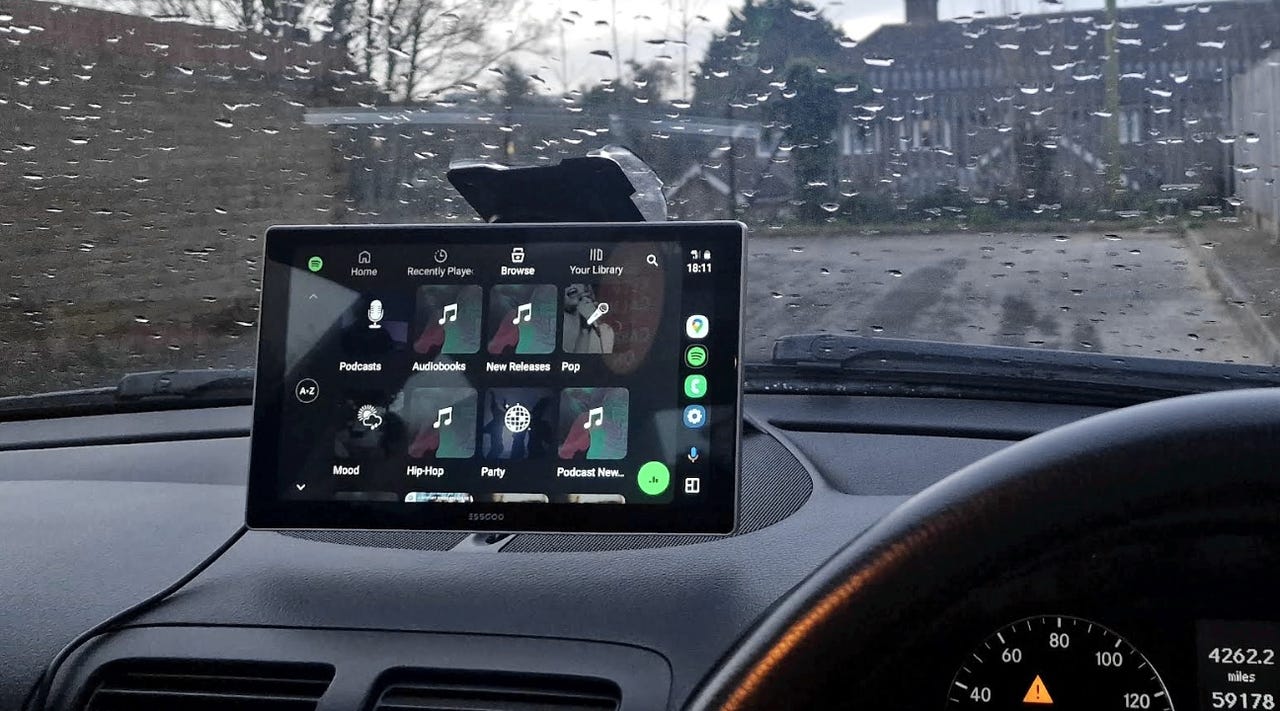
Android Auto’s Custom Assistant shortcut remains one of the platform’s most underutilized features, despite offering powerful automation capabilities that take just one minute to configure. This hidden feature lets you trigger preset actions and automations directly from your car’s display, transforming everyday driving routines into hands-free commands.
Android Auto provides safe access to navigation, messages, and calling while driving, but the Custom Assistant shortcut elevates the experience by automating complex tasks. With Google Gemini integrated into Android Auto, you can now handle sophisticated commands through shortcuts that activate with a single tap.Imagine arriving home and having your air conditioning automatically adjust to a cooler temperature while lights turn on simultaneously. Or departing for work and triggering your HVAC system into Eco mode, shutting off all lights, and starting your robot vacuum in one command.
The setup process requires minimal effort and takes roughly 60 seconds to complete on your Android phone.
- Open the Android Auto settings on your Android phone.
- Select
Customize launcherfrom the available options. - Tap Add a shortcut and choose the
Assistant actionoption. - Enter your custom command in the text field.
- Connect your phone to your car or Android Auto device to test the shortcut.
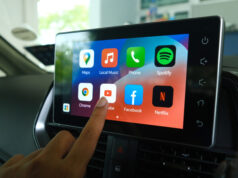
Note: The new shortcut will appear as an app icon on your Android Auto display, ready to activate with a single tap.
The flexibility of Custom Assistant enables you to design shortcuts tailored to your specific needs. Here are practical examples you can implement:
- “Navigate to the nearest X gas station.”
- “Play the latest episode of Y podcast.”
- “Tell Z that I’m on my way.”
- “I’m coming home.”
- “Navigate to work.”
Each command activates the same way: tap the shortcut icon on your Android Auto display, and the action executes immediately. If the wording doesn’t trigger the intended action on first try, you can always adjust the command phrasing in your Android Auto settings.
Custom Assistant shortcuts are tied to your Google account rather than your specific vehicle or Android Auto display. This means any shortcut you create will be available whenever you use Android Auto, whether in your personal car, a rental vehicle, or a standalone Android Auto device.
However, these shortcuts require an active cell signal to function. In areas with no coverage, commands may fail to execute. Additionally, if you experience persistent Android Auto connection issues, test your shortcuts when your phone has stable connectivity to ensure they work as intended.
You now understand how to unlock Android Auto’s Custom Assistant feature and create automation shortcuts that simplify your driving experience. With setup taking just one minute, the effort required is minimal compared to the convenience gained.
Beyond Custom Assistant, Android Auto continues receiving free upgrades that expand its capabilities. You might also explore using Google Meet safely within your vehicle to maximize your car’s digital integration. Start by creating one simple shortcut today and expand your automation library as you discover additional routines that enhance your daily commute.
Follow Hashlytics on Bluesky, LinkedIn , Telegram and X to Get Instant Updates