
Allocate VRAM Manually
Default VRAM allocations are often too restrictive for demanding titles. Open AMD’s software suite and manually set VRAM allocation based on the games you play. This gives the GPU enough memory headroom to prevent stuttering and frame drops during intensive scenes.
Configure Power Modes Per Game
Windows power modes directly impact gameplay performance. Navigate to your system’s power settings and understand the two key modes. Efficiency mode prioritizes GPU resources, ideal for graphically intensive games. Performance mode allocates more to the CPU, better suited for simulation or strategy titles. Switch between them depending on what you’re playing rather than leaving it on a single default.
Use Upscaling Strategically
Enable AMD Radeon Super Resolution (RSR) to render games at lower internal resolutions like 800p while outputting sharp imagery. This boosts frame rates significantly on demanding titles. However, some games actually look and perform better without upscaling, so test both configurations for each game in your library.
Adjust HDR for Environment
Toggle HDR settings based on your gaming environment. Disabling HDR in darker rooms reduces screen glare and can improve visibility in dimly lit game scenes. Re-enable it in brighter environments where the extra brightness range enhances image quality.
Use Hibernate Instead of Sleep
Windows sleep mode has proven unreliable on portable devices for years. Devices often wake up inside bags, generating excessive heat and draining batteries. Switch to hibernate mode instead, which saves your session to storage and fully powers down the system. This prevents unexpected wake events and preserves battery life during longer periods of inactivity.
Treat Presets as Starting Points
For gamers who love to tinker and optimize their hardware, factory presets are just baselines. Expect to spend time in settings menus fine-tuning VRAM, power profiles, and display configurations on a per-game basis. This upfront investment creates a more stable and efficient gaming experience than relying on automatic settings.
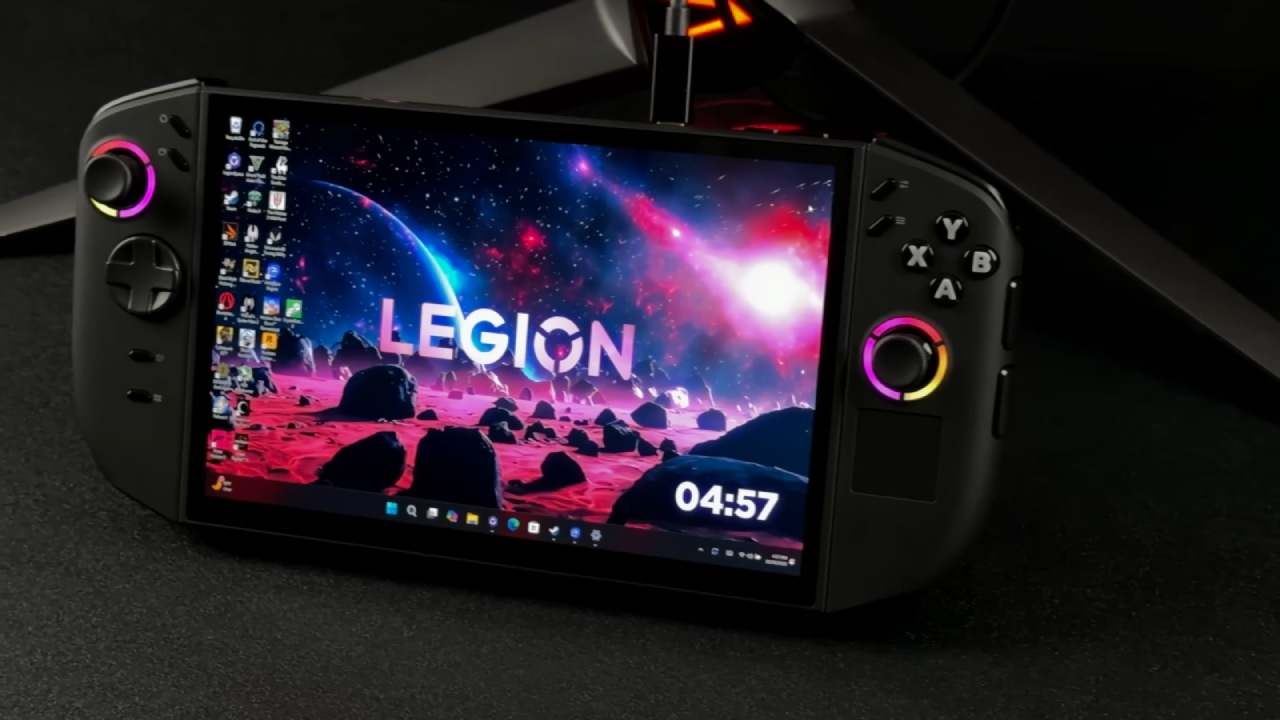
You can see the current generation device at the official Lenovo Legion Go page for context on Lenovo’s handheld design philosophy.
Follow us on Bluesky , LinkedIn , and X to Get Instant Updates