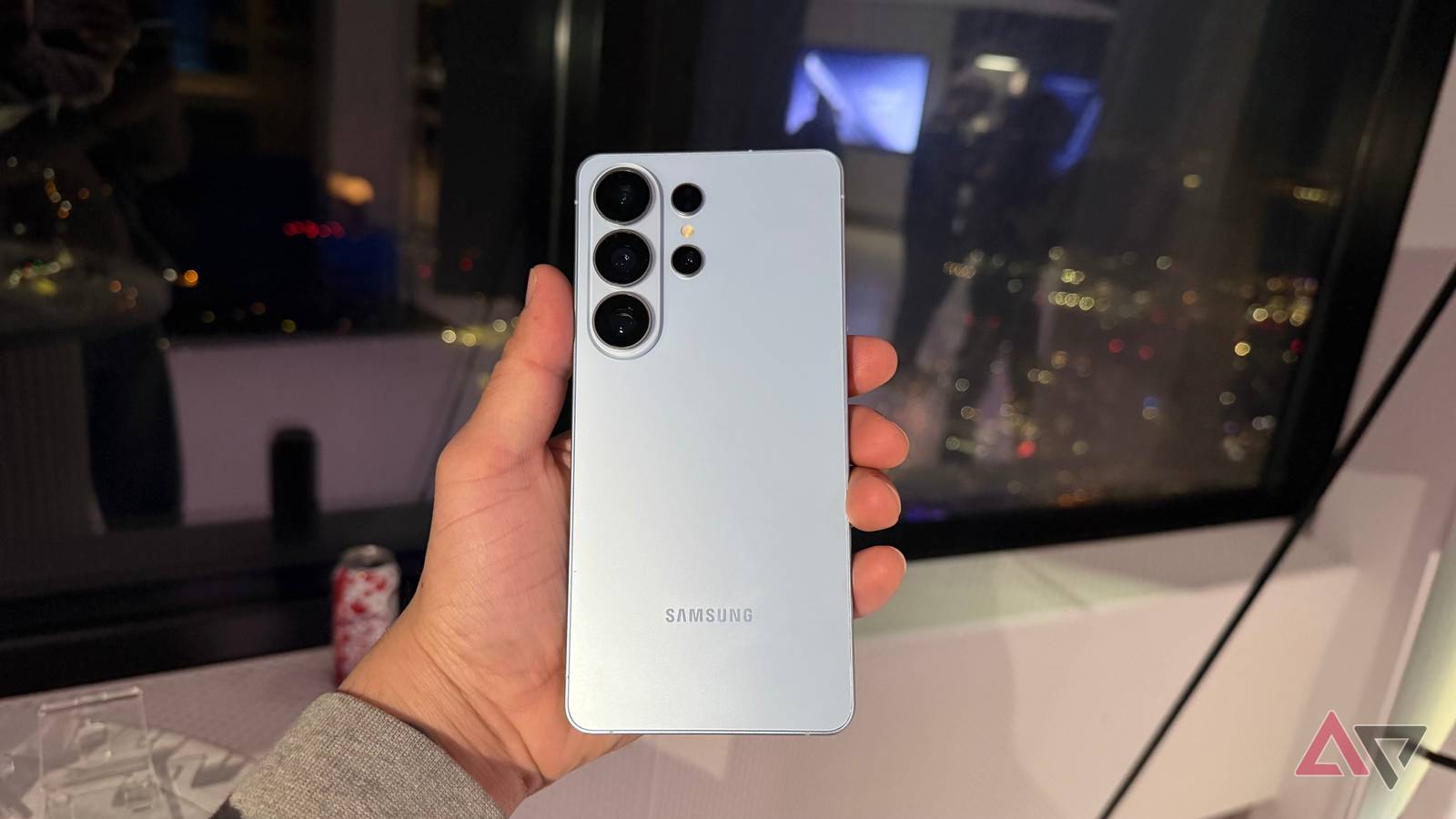
Your Samsung Galaxy phone has a powerful camera, but many of its best controls are hidden away. A free, official Samsung app called Camera Assistant unlocks advanced features that can instantly improve sharpness, reduce aggressive processing, and give you finer control over how your photos look.
This tool is part of Samsung’s Good Lock suite of customization apps. Here’s how to find it and which settings to change first.
Step 1: Download Camera Assistant
You can install Camera Assistant two ways:
Option A: Direct from Galaxy Store (simplest method)
- Open the Galaxy Store app on your Samsung phone
- Search for
Camera Assistant - Tap Install
Option B: Via Good Lock app
- Install Good Lock from the Galaxy Store (not available on Google Play Store)
- Open Good Lock and tap the Life up tab
- Scroll down to find
Camera Assistant - Tap the download button next to it
Note: Camera Assistant requires One UI 5.1 or newer (Android 13+). If you don’t see it in the Galaxy Store, your phone may not be supported yet or you need to update your software first.
Step 2: Access the New Settings
Once installed, the new controls integrate directly into your main camera app:
- Open the Camera app
- Tap the gear icon to open Settings
- Scroll down to find the new
Camera Assistantmenu item - Tap it to access all advanced options
Key Settings to Change Right Away
Auto HDR: Keep this enabled. It automatically captures more detail in bright and dark areas of scenes when the camera detects the right conditions.
Soften pictures: Turn this off if you find your photos look overly smooth or lack fine detail. This is a common complaint about Samsung’s default processing. When disabled, you get sharper, more natural-looking images with visible texture.
Quick tap shutter: Enable this to make the camera take a picture as soon as your finger touches the shutter button, rather than when you lift it. This reduces motion blur from an unsteady hand, especially useful for action shots.
Capture Speed: You can choose to prioritize quality, speed, or balance. Select Prioritize quality for the best possible image processing, even if it takes a fraction of a second longer. Choose Prioritize speed for fast-moving subjects.
What Camera Assistant Actually Does
Samsung’s default camera experience is designed for point-and-shoot simplicity, which often involves aggressive software processing. Camera Assistant hands that control back to you, letting you disable heavy-handed sharpening or smoothing and speed up shutter response.
It provides a middle ground between the fully automatic mode and the complex Expert RAW app. By spending a few minutes in Camera Assistant, you can tailor your Galaxy phone’s camera to your personal preference without downloading a third-party application.
Follow Hashlytics on Bluesky, LinkedIn , Telegram and X to Get Instant Updates