What you’ll learn:
- How to enable and use AI writing assistance
- How to set up accurate voice-to-text
- How to customize keyboard appearance and layout
- How to enable gesture controls for faster editing
Prerequisites:
- Samsung Galaxy device running One UI 8.0 or later
- Samsung Keyboard (usually default on Galaxy devices)
- Samsung account logged in (for AI features)
- Good Lock app (for advanced customization—optional)
- 10-15 minutes to complete
Check Your One UI Version
First, verify you have One UI 8:
- Open Settings
- Scroll to bottom, tap About phone
- Look for One UI version
- Should say “One UI 8.0” or higher
If you’re on One UI 7 or older, these features won’t be available. Update via Settings → Software update.
Step 1: Enable Voice-to-Text Input
Voice typing in One UI 8 has better accuracy and noise cancellation than previous versions. It’s useful for long messages or when your hands are busy.
Enable Voice Input
- Open any app with text input (Messages, Notes, Samsung Internet)
- Tap a text field to bring up the keyboard
- Tap the gear icon (⚙️) at top of keyboard
- Tap Voice input
- Select Google Voice Typing (usually more accurate than Samsung’s option)
Add Microphone Button to Keyboard
If you don’t see a microphone icon on your keyboard:
- In keyboard settings, find Keyboard toolbar
- Ensure Microphone toggle is ON
- Or enable Touch and hold space bar → select Voice input
Test Voice Input
- Open Messages app
- Tap text field
- Press and hold Space bar for 2 seconds (or tap microphone icon)
- You should see “Tap to speak” or “Listening…”
- Say: “Testing voice input on Samsung keyboard”
- Text should appear in real-time
Expected result: Your speech transcribes accurately with proper punctuation.
Step 2: Configure Predictive Text
One UI 8’s predictive text learns from your typing patterns, but the auto-replace feature can be annoying. Here’s how to optimize it.
Adjust Auto-Replace Settings
- Open keyboard in any app
- Tap gear icon (⚙️)
- Look for Smart typing section
- Toggle Predictive text to ON
- Toggle Auto replace to OFF
Why: Predictive text shows word suggestions above keys. Auto-replace automatically changes what you type, which often causes errors (like “I’ll” becoming “Ill”).
Download Language Models
If predictions aren’t working:
- In keyboard settings, tap Languages and types
- Tap your language (e.g., “English (US)”)
- If you see a download prompt, tap Download
- Wait for language model to install (50-150MB)
Test Predictions
- Open Notes app
- Type: “I’m going to the”
- Look above keyboard for word suggestions: “store,” “gym,” “office,” etc.
- Tap a suggestion to insert it
Expected result: Three relevant word suggestions appear above keyboard after typing 2-3 words.
Step 3: Enable AI Writing Assist
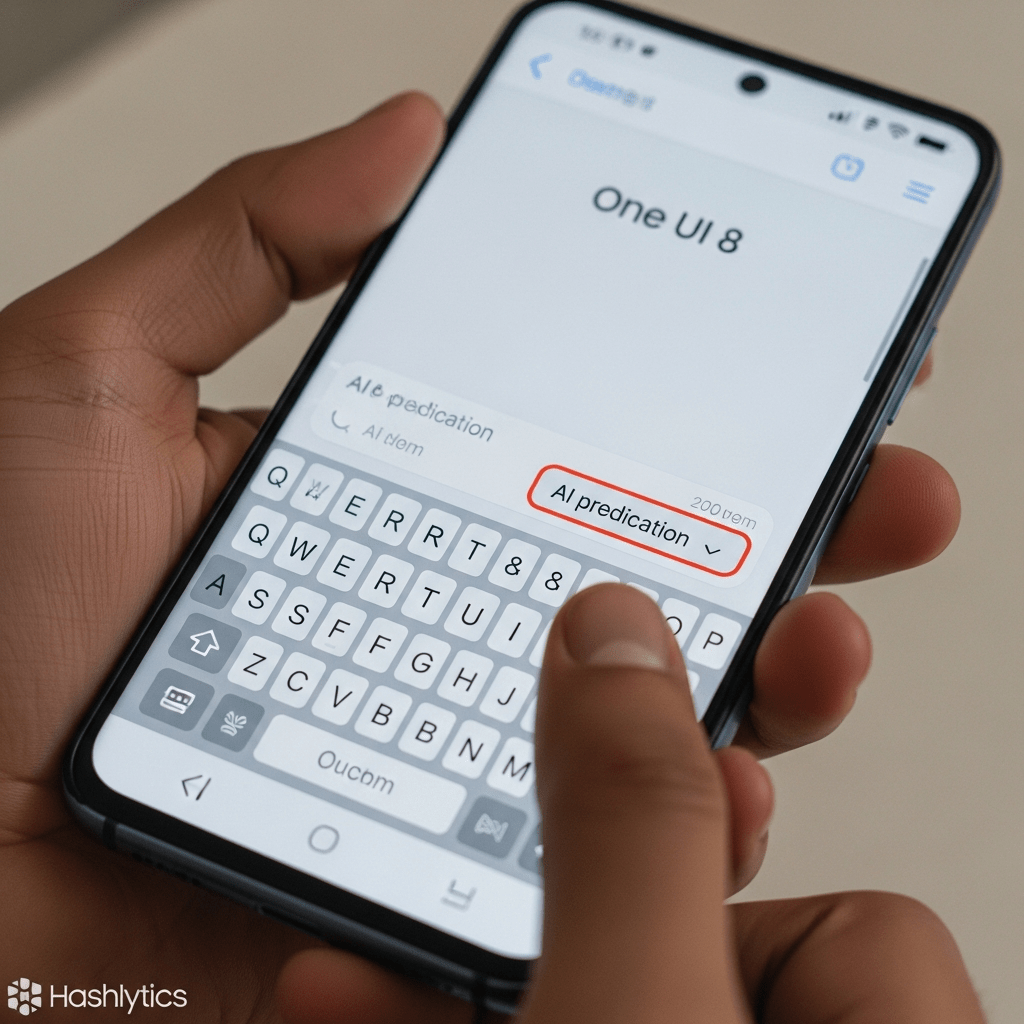
One UI 8 includes AI-powered writing tools that can rephrase text, adjust tone, fix grammar, and complete sentences. This is one of the best new features in One UI 8.
Enable Writing Assist
- Open keyboard settings (gear icon)
- Find Samsung Keyboard section
- Look for Galaxy AI or Writing assist
- Toggle it ON
- Sign in with Samsung account if prompted
Add Writing Assist to Keyboard Toolbar
- Open keyboard in any app
- Tap the three dots (⋮) icon on keyboard toolbar
- Long-press the Writing assist icon (three stars ✨)
- Drag it onto the main toolbar
- Drop it where you want it
Use Writing Assist
- Type a sentence: “hey can you send me that report”
- Select the text (long-press and drag handles)
- Tap the Writing assist icon (✨)
- Choose an option:
- Formalize: “Hello, could you please send me that report?”
- Casualize: “Hey, can you send that report?”
- Grammar check: Fixes errors
- Summarize: Makes text shorter
- Tap your preferred version to replace original text
Expected result: Selected text transforms based on your chosen style in under 2 seconds.
Step 4: Customize Keyboard Appearance
One UI 8 lets you match your keyboard to your phone’s overall customization theme and wallpaper.
Enable Dynamic Theme
- Open keyboard settings
- Tap Style and layout
- Tap Keyboard theme
- Select Dynamic (syncs with wallpaper colors)
- Keyboard colors should change to match your wallpaper
Adjust Contrast for Visibility
If keys are hard to see (especially on OLED screens in bright sunlight):
- In Style and layout
- Toggle High contrast keyboard to ON
- Keys will have darker borders and better definition
Change Keyboard Size
- In Style and layout
- Tap Keyboard size and transparency
- Drag Keyboard size slider left (smaller) or right (larger)
- Adjust Transparency if desired
- Tap Done
Test: Open any app and verify keyboard is comfortable to type on. Adjust size if needed.
Step 5: Set Up Gesture Controls (Advanced)
One UI 8 supports keyboard gestures for faster text editing. These are disabled by default.
Enable Basic Gestures
- Open keyboard settings
- Tap Swipe, touch, and feedback
- Find Keyboard swipe controls
- Toggle ON
Available Gestures
Once enabled, you can:
- Swipe left on space bar: Move cursor left
- Swipe right on space bar: Move cursor right
- Swipe up from shift key: Capitalize next word
- Swipe down from top row: Insert number without switching
Test Cursor Movement
- Type: “The quick brown fox”
- Place cursor after “quick”
- Swipe left on space bar
- Cursor should move backward character by character
- Swipe right to move forward
Step 6: Install Good Lock for Advanced Customization (Optional)
Good Lock’s Keys Cafe module unlocks extreme keyboard customization. This is for power users who want complete control.
Install Good Lock
- Open Galaxy Store app
- Search “Good Lock”
- Install Good Lock (by Samsung Electronics Co., Ltd.)
- Open Good Lock
- Under “Life Up” section, find Keys Cafe
- Tap Download
- Open Keys Cafe after installation
Note: Good Lock isn’t available in all regions (not in China, Japan, some others). If you can’t find it, skip this section.
Customize with Keys Cafe
Keys Cafe lets you:
- Change individual key colors
- Adjust key sizes and shapes
- Add custom key press effects
- Create keyboard layouts optimized for your hand size
- Set up advanced gestures (two-finger swipe to copy, three-finger swipe to paste)
Set Up Copy/Paste Gestures
- In Keys Cafe, tap Multi-touch gestures
- Toggle Enable multi-touch gestures ON
- Set Two-finger swipe up to Copy all text
- Set Two-finger swipe down to Paste
- Tap Apply
Test Gestures
- Open Notes, type some text
- With keyboard visible, place two fingers on keyboard
- Swipe up with both fingers
- Text should copy to clipboard
- Open a new note, swipe down with two fingers
- Text should paste
Troubleshooting Common Issues
Voice Input Icon Missing
Cause: Microphone isn’t enabled in keyboard toolbar
Fix:
- Keyboard settings → Keyboard toolbar
- Toggle Microphone ON
- Or enable Touch and hold space bar → Voice input
Predictive Text Shows Wrong Language
Cause: Multiple keyboard languages installed, wrong model active
Fix:
- Keyboard settings → Languages and types
- Remove languages you don’t use
- For remaining language, download its prediction model
- Restart keyboard (close and reopen app)
Writing Assist Not Available
Cause: Region restriction or Samsung account not signed in
Fix:
- Verify Samsung account is signed in: Settings → top of page shows your name
- If not, tap Sign in and enter credentials
- AI features may not be available in all countries (check Samsung’s supported regions list)
Good Lock Not in Galaxy Store
Cause: Not available in your region
Fix:
- Good Lock officially supports: US, UK, Canada, Australia, South Korea, and select other countries
- If unavailable, try Nice Lock (third-party app that enables Good Lock modules)
- Or use Samsung’s built-in customization without Good Lock
Gestures Don’t Work
Cause: Gesture controls not enabled or conflicting with system gestures
Fix:
- Keyboard settings → Swipe, touch, and feedback
- Ensure Keyboard swipe controls is ON
- Try in different app (some apps block keyboard gestures)
- For Good Lock gestures, ensure Keys Cafe is set as active keyboard customization
Tips for Best Experience
Improve Voice Input Accuracy
- Speak clearly at normal pace (not too fast or slow)
- Use voice commands: “period,” “comma,” “new line,” “question mark”
- Minimize background noise when possible
- For better accuracy in noisy environments, use Google Voice Typing over Samsung’s option
Train Predictive Text
- The more you type, the better predictions become
- Don’t always use suggestions—type full words to teach keyboard your style
- Clear learned words if keyboard keeps suggesting wrong terms: Settings → Reset to default settings (last resort)
Optimize AI Writing Assist
- Select complete sentences for best results (not fragments)
- Use “Formalize” for work emails, “Casualize” for friends
- “Grammar check” works on any length text
- AI processes on-device for privacy (no internet needed after initial setup)
Comparing to Third-Party Keyboards
Samsung Keyboard One UI 8 vs. Gboard:
| Feature | Samsung Keyboard | Gboard |
|---|---|---|
| AI Writing Tools | Built-in, on-device | Requires Google account, cloud-based |
| Voice Typing | Good (can use Google’s engine) | Excellent |
| Customization | Extensive (with Good Lock) | Limited themes |
| Gestures | Advanced (multi-finger with Keys Cafe) | Basic (swipe typing only) |
| Privacy | On-device processing | Cloud-based, data sent to Google |
Bottom line: Samsung Keyboard in One UI 8 is now competitive enough that most users won’t need third-party keyboards. The AI writing tools and Good Lock customization give it unique advantages over Gboard.
Samsung’s keyboard in One UI 8 is a significant upgrade from previous versions. The combination of AI writing tools, improved predictions, and extensive customization (especially via Good Lock) makes it a genuinely capable typing solution that no longer requires third-party alternatives.
Next steps:
- Use the keyboard for 2-3 days to let predictive text learn your style
- Experiment with Writing Assist’s different tone options
- If you use Good Lock, try creating a custom layout optimized for your hand size
- Share your favorite customizations with friends who also have Samsung devices
Follow us on Bluesky, LinkedIn, and X to Get Instant Updates