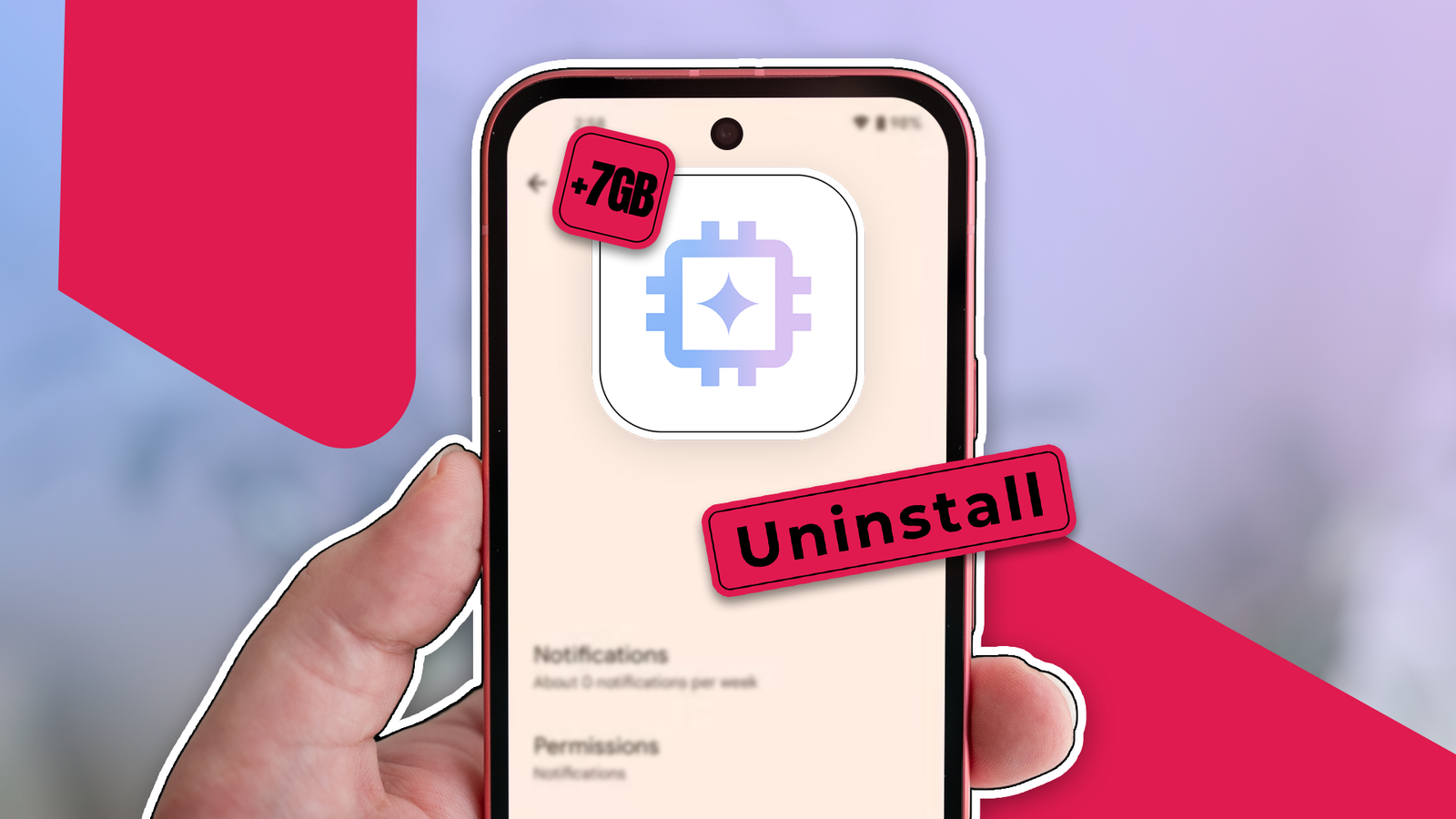
Disabling com.google.android.aicore, the system service powering Google‘s on-device AI features, can reclaim up to 7GB of storage on Android devices. This system app hosts the Gemini Nano large language model and related inference engines that enable features like Recorder transcription summaries and Magic Compose suggestions. For users who don’t utilize these capabilities, removing AICore provides significant storage gains without affecting cloud-based AI services.
What AICore Does
AICore serves as the runtime environment for Google’s on-device machine learning models, primarily the Gemini Nano model introduced with Android 14 and Pixel 8 devices. The app downloads and maintains model weights, handles inference requests from compatible applications, and manages computational resources for AI tasks that Google designed to run locally rather than in the cloud.
Storage consumption varies by device and installed models. Pixel 9 Pro devices with the full Gemini Nano implementation typically allocate 5-7GB for AICore, while mid-range devices with limited on-device AI support may use 2-3GB. The exact storage footprint depends on which models your device manufacturer pre-loaded and whether you’ve used features that trigger additional model downloads.
Technical Impact of Disabling
Affected Features: Pixel Recorder’s automatic transcription and summary generation, Magic Compose’s context-aware message suggestions in Google Messages, Pixel Screenshots‘ text recognition enhancements, and TalkBack’s detailed image descriptions all depend on AICore. Third-party apps implementing Google’s APIs for on-device inference will also lose functionality.
Unaffected Services: Cloud-powered AI tools continue operating normally. The standalone Gemini app, Google Assistant’s server-side processing, Photos’ cloud-based search and editing features, and Chrome’s summarization capabilities all run independently of the local AICore service.
System Behavior: Disabling AICore through ADB executes a user-level uninstall
that removes the app from the active user profile without deleting system partition files. This approach clears the /data/data/com.google.android.aicore directory and marks the package as disabled, preventing it from consuming storage or CPU cycles. The operation is fully reversible through factory reset or manual reinstallation.
Step-by-Step Removal Process
1. Enable Developer Options and USB Debugging
Navigate to Settings → About phone and tap Build number seven times to unlock Developer options. Return to Settings → System → Developer options and enable USB debugging. This grants ADB the necessary permissions to execute package management commands on your device.
2. Install Android Debug Bridge
Download the official SDK Platform-Tools from Google, which contains the ADB binary for Windows, macOS, and Linux. Extract the archive to a permanent location (e.g., C:\platform-tools on Windows or ~/platform-tools on macOS/Linux). Add this directory to your system PATH or navigate to it in your terminal before running commands.
3. Authorize Device Connection
Connect your Android device via USB cable. Open a terminal or command prompt in the platform-tools directory and execute adb devices. Your phone will display an Allow USB debugging?
prompt. Check Always allow from this computer and tap Allow. Run adb devices again to verify your device appears as authorized rather than unauthorized.
4. Execute Uninstall Command
Run the following command to disable AICore for user 0 (the primary user profile):
adb shell pm uninstall -k --user 0 com.google.android.aicoreThe -k flag preserves the app’s data directory structure during removal, while --user 0 targets only the main user account. A Success response confirms completion. Disconnect your device and verify increased available storage in Settings → Storage.
Verification and Reversal
To confirm AICore is disabled, run adb shell pm list packages | grep aicore. The package should not appear in the output. Check affected apps like Recorder—transcription features will display errors or be grayed out.
To restore AICore functionality, execute: adb shell cmd package install-existing com.google.android.aicore. This reinstalls the package from the system partition without requiring downloads. Alternatively, factory reset restores all disabled system apps, though this erases user data.
When This Optimization Makes Sense
Disabling AICore is appropriate for users with constrained storage (64GB devices), those who find proactive AI suggestions intrusive, or individuals who rarely use affected features. The 5-7GB savings can accommodate additional apps, offline maps, or media files. Since cloud-based AI services remain functional, you retain access to most Google AI capabilities while eliminating local model overhead.
This approach is non-destructive and reversible through ADB commands, making it a safe optimization for power users who understand the feature trade-offs. For devices with 256GB+ storage where space isn’t critical, leaving AICore enabled provides faster, privacy-preserving AI features that don’t require internet connectivity.
Follow us on Bluesky , LinkedIn , and X to Get Instant Updates