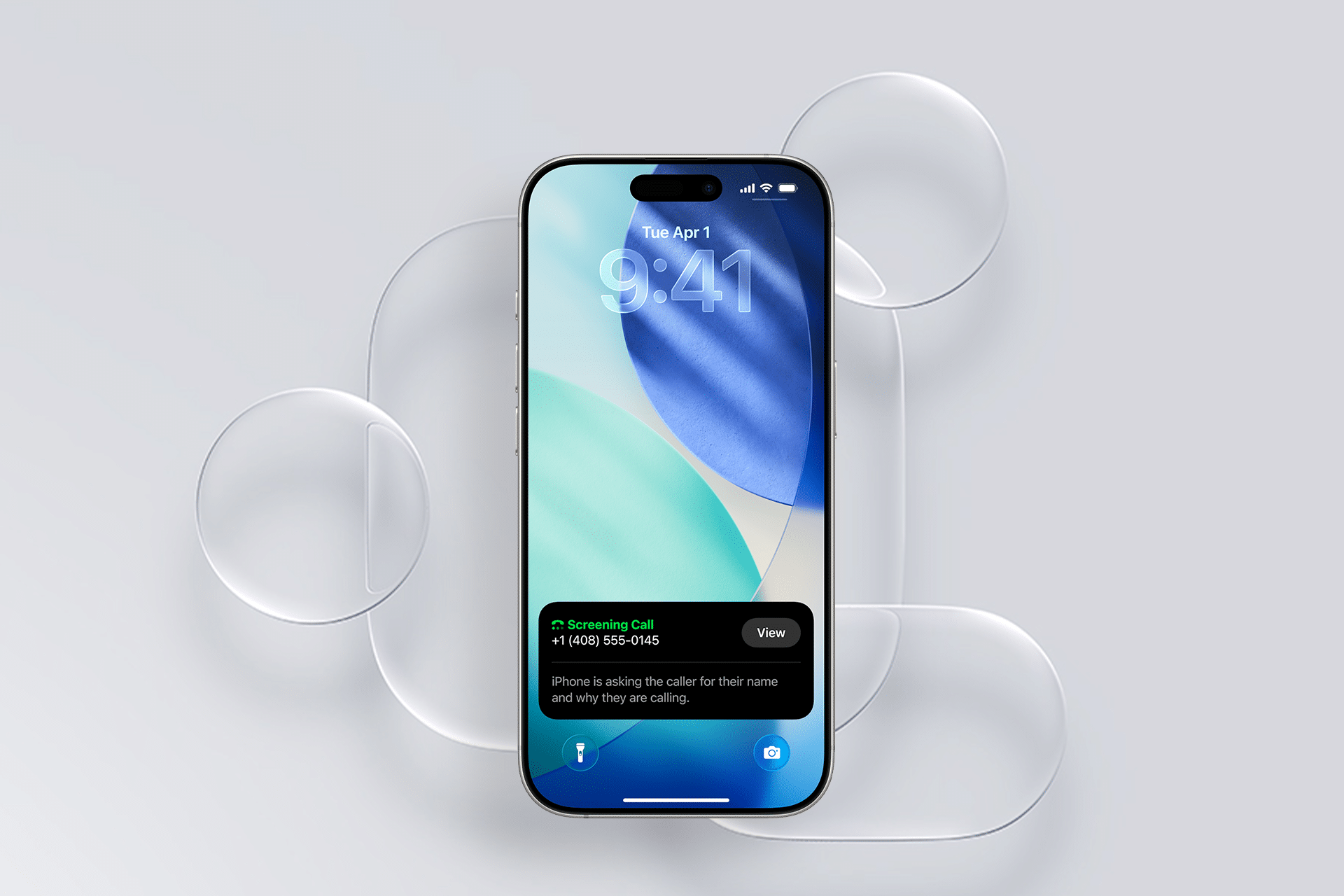
This tutorial shows you how to create Lock Screens that automatically change based on your activity, display only what matters, and reduce digital noise.
Step 1: Enter Customization Mode
Two ways to start:
- From Lock Screen: Touch and hold anywhere on your Lock Screen → tap Customize when it appears
- From Settings: Go to Settings → Wallpaper → tap + for new Lock Screen
You’ll see a gallery of your existing Lock Screens. Swipe between them or tap + to create a new one.
Step 2: Customize Appearance and Widgets
Change the clock: Tap the time to adjust font style and color. Swipe to try different color filters.
Add useful widgets:
- Tap the widget area below the clock
- Browse available widgets (weather, calendar, battery, activity rings)
- Drag widgets to arrange them
- Tap - to remove unwanted widgets
Popular widget combinations:
- Work: Calendar + weather + battery
- Personal: Activity rings + weather
- Minimal: No widgets for distraction-free viewing
Step 3: Link Lock Screens to Focus Modes
The most powerful iOS 26 feature: Lock Screens that automatically switch based on your activity.
How to link:
- While customizing a Lock Screen, tap Focus at the bottom
- Select a Focus mode: Work, Personal, Sleep, or your custom modes
- Tap Done
What happens: When that Focus mode activates, your Lock Screen automatically switches to the linked design. Work Focus shows work widgets, Sleep Focus shows minimal information.
Example setup:
- Work Lock Screen: Calendar + weather, linked to Work Focus
- Personal Lock Screen: Photos + activity rings, linked to Personal Focus
- Sleep Lock Screen: Dark wallpaper, no widgets, linked to Sleep Focus
Step 4: Control Notifications
Reduce Lock Screen clutter by controlling which apps can send notifications during each Focus mode.
Configure notifications:
- Go to Settings → Focus
- Select a Focus mode (e.g., Work)
- Tap Apps → choose which apps can notify you
- Tap People → select contacts allowed to reach you
Additional options:
- Dim Lock Screen: Reduces brightness during Focus
- Hide Notification Badges: Removes red dots from apps
Example Work Focus: Allow notifications only from Slack, email, and your manager. Silence social media, news apps, and shopping alerts.
Step 5: Create Multiple Lock Screens
Build a collection of Lock Screens for different situations and quickly switch between them.
To create multiple Lock Screens:
- Touch and hold your Lock Screen → tap +
- Choose a wallpaper and add widgets
- Repeat for each Lock Screen you want
To switch between them: Swipe left or right on your Lock Screen gallery (touch and hold Lock Screen to access).
Recommended setup:
- Work: Professional wallpaper, calendar/weather widgets, Work Focus linked
- Personal: Photo wallpaper, activity/battery widgets, Personal Focus linked
- Fitness: Dynamic wallpaper, activity rings, Fitness Focus linked
- Sleep: Dark wallpaper, no widgets for minimal distractions, Sleep Focus linked
Automate Lock Screen Changes
Make your Lock Screens switch automatically based on time, location, or app usage.
Set up automation:
- Go to Settings → Focus
- Select a Focus mode → tap Add Schedule or Automation
- Choose trigger: Time, Location, or App
Examples:
- Work Focus: Activates weekdays 9 AM-5 PM, or when you arrive at office
- Reading Focus: Activates when you open Kindle or Apple Books
- Fitness Focus: Activates when you start a workout in the Fitness app
Advanced tip: Use Focus Filters (in Focus settings) to show only specific calendars or email accounts during each Focus mode.
Final Tips
- Start with 2-3 Lock Screens: Work, Personal, Sleep
- Link each to its matching Focus mode for automatic switching
- Limit widgets to 2-3 per Lock Screen — less clutter means better focus
- Test your Focus notification settings for a few days and adjust
- Use automations so you don’t have to manually switch modes
Your Lock Screen now adapts to your life, showing relevant information without overwhelming you. Spend a few minutes setting it up, and you’ll save countless interruptions every day.
Follow us on Bluesky, LinkedIn, and X to Get Instant Updates