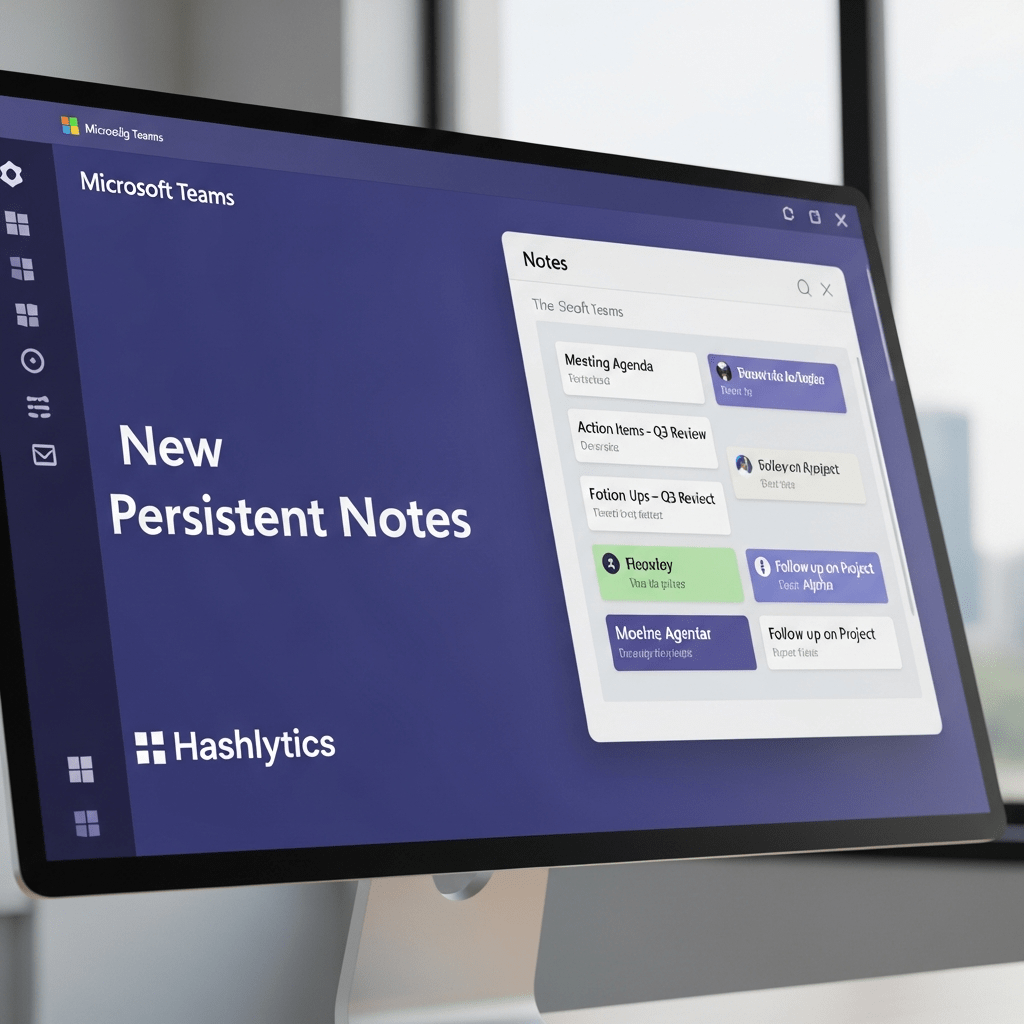
Microsoft rolled out Pages and Notes to Teams channels in December 2025, promising to end the chaos of scattered meeting notes and lost action items. The update brings Loop components directly into Teams, letting teams co-author documents, share live tables, and @mention colleagues without leaving the app.
What Actually Changed
Teams now adds a Loop Page to every channel automatically, including private and shared channels where the old Notes tab didn’t work. Users can embed Loop components (tables, task lists, agendas) directly into chats and meetings, with real-time sync across Teams, Outlook, and OneNote.
| Feature | Before | After |
|---|---|---|
| Channel Notes | OneNote only (standard channels) | Loop Pages (all channel types) |
| Meeting Notes | Scattered across chat, email, OneNote | Centralized in Loop Meeting Notes tab |
| Real-time Collaboration | Limited (Word Online, OneNote) | Full (Loop components sync instantly) |
| Cross-app Access | App-specific (Teams ≠ Outlook ≠ OneNote) | Universal (Loop components work everywhere) |
The Problem: It’s Not Actually Simpler
Microsoft’s pitch sounds great. The reality? Teams now offers three note-taking systems simultaneously: OneNote channel notebooks, Loop Pages, and Loop components. As one IT admin noted, “I expect that this new Loop page will replace the Notes tab in the future”—but Microsoft hasn’t deprecated OneNote, leaving teams to figure out which tool to use.
Common Confusion Points
- Storage location: Loop components live in creator’s OneDrive by default — if they leave the org, notes disappear unless manually shared
- Recurring meetings: Loop doesn’t auto-create separate notes per meeting instance — teams must manually duplicate templates
- Mobile limitations: Loop notes don’t sync for channel meetings, Meet Now sessions, or 1:1 calls on mobile
- Permission issues: Loop components from Personal Workspaces can’t be added to channels—only non-personal locations work
What Works Well
When configured correctly, Loop solves genuine problems:
- Live collaboration: Multiple people edit meeting notes simultaneously during calls, changes save instantly
- Task integration: Type “/” to convert any line into a task that syncs with Planner or To Do automatically
- Portable components: Drop a Loop table into Teams chat, pin to channel, or email it, everyone sees real-time updates
- Meeting history: Loop’s Meeting Notes tab centralizes agendas, action items, and decisions by calendar date
Who Should Use What
Use Loop When:
- Meetings move fast and require simultaneous editing
- Tasks need immediate assignment with due dates
- Project teams want persistent, always-accessible notes
Stick With OneNote When:
- Your team already has established workflows
- Offline access is critical (Loop requires internet)
- You need local notebook backups for compliance
The Storage and Compliance Question
Loop pages in Teams channels store in SharePoint’s channel folder, good for governance. Loop components in meetings store in the creator’s OneDrive, problematic for eDiscovery and retention policies. Microsoft added retention labels and sensitivity labels in December 2025, but IT admins must manually configure policies, nothing works by default.
Teams’ Loop integration offers powerful real-time collaboration, if your team invests time learning when to use Pages vs Notes vs components vs OneNote. For organizations already overwhelmed by Microsoft’s tool sprawl (Teams, SharePoint, OneDrive, OneNote, Loop, Planner, To Do, Whiteboard), this adds another layer of complexity disguised as simplification.
Microsoft claims it’s “simplifying collaboration.” Users say it’s adding more choices to an already confusing ecosystem. The tools work well individually, but expecting teams to self-organize around three overlapping note systems without clear guidance is optimistic at best.