Stop Apps and Websites From Following You
Most tracking happens in the background, across apps and across sites. These steps let you see what apps are doing and cut off the sharing you did not agree to.
- Open
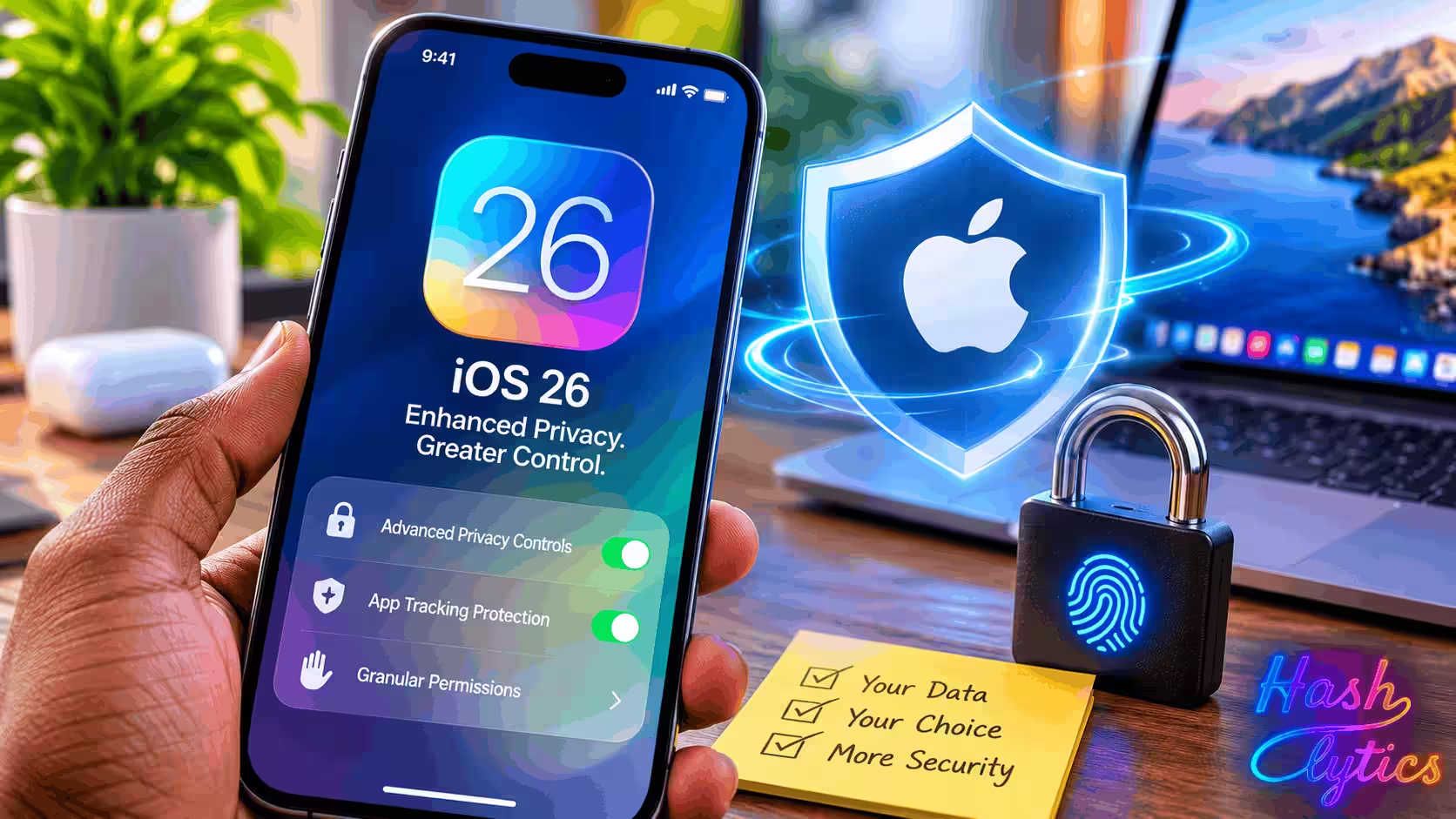
Settings > Privacy & Security > Trackingand make sureAllow Apps to Request to Trackis on. This is what makes apps ask permission first. When a newly launched app asks, tap Ask App Not to Track. - Open an app’s App Store page and scroll to App Privacy to see what data it says it collects, before you install it.
- Go to
Settings > Privacy & Security > App Privacy Reportand tapTurn On App Privacy Report. Once it has collected a few days of activity, the report shows which apps accessed your location, camera, microphone and contacts, and which domains they contacted. - Open
Settings > Apps > Safariand confirmPrevent Cross-Site Trackingis on. - In the same Safari settings, tap
Hide IP Addressand chooseTrackers and Websites. Your IP address is then hidden from known trackers and from the sites you visit, which makes it harder to build a profile of you.
Lock Down Your Passcode and Lock Screen
Software privacy settings mean little if someone can pick up your phone and switch them off. These settings protect the device itself, including against a thief who has watched you type your passcode.
- Open
Settings > Face ID & Passcodeand enter your passcode. Check thatiPhone Unlockis set up with Face ID. - Tap
Change Passcode, enter your current code, then choosePasscode Optionsand pickCustom Alphanumeric Code. A longer code mixing letters and numbers is far harder to guess than a six-digit PIN. - Scroll to
Allow Access When Lockedand switch offControl Center. A thief can no longer open Control Center from the lock screen to enable Airplane Mode and cut the phone off from Find My. - Still in
Face ID & Passcode, tapStolen Device Protectionand turn it on. Away from familiar places such as home or work, sensitive actions like changing your Apple Account password will then require Face ID with no passcode fallback, plus a one-hour delay for the most sensitive changes.
Stolen Device Protection needs Significant Locations to be on, so it can tell which places are familiar. You can switch that on in the next section. Apple stores that location history on your device and encrypts it.
If you are at real risk of targeted attacks, such as a journalist, activist or public official, you can also open Settings > Privacy & Security > Lockdown Mode and tap Turn On Lockdown Mode. It restricts some message attachments, web features and app functions to shrink the attack surface, so most people should leave it off.
Control Location, Analytics and Ad Profiling
Even with tracking blocked, your phone still shares background telemetry and location signals. Switching off what you do not need limits the profile that can be built about you, while keeping the features that help if your phone goes missing.
- Open
Settings > Privacy & Security > Location Services > System Services. KeepFind My iPhoneon so you can locate a lost phone, and turn onSignificant Locationsif you want Stolen Device Protection to work. - Go to
Settings > Privacy & Security > Analytics & Improvementsand turn offShare iPhone Analyticsand any other sharing toggles you do not want. - Go back to
Privacy & Security, tapApple Advertising, and switch offPersonalized Ads. - Open the Find My app, go to the
Itemstab, and checkItems Detected With You. If an unknown tracker has been traveling with you, tap it to see its details and instructions for disabling it.
Follow Hashlytics on Bluesky, Facebook, LinkedIn , Telegram and X to Get Instant Updates