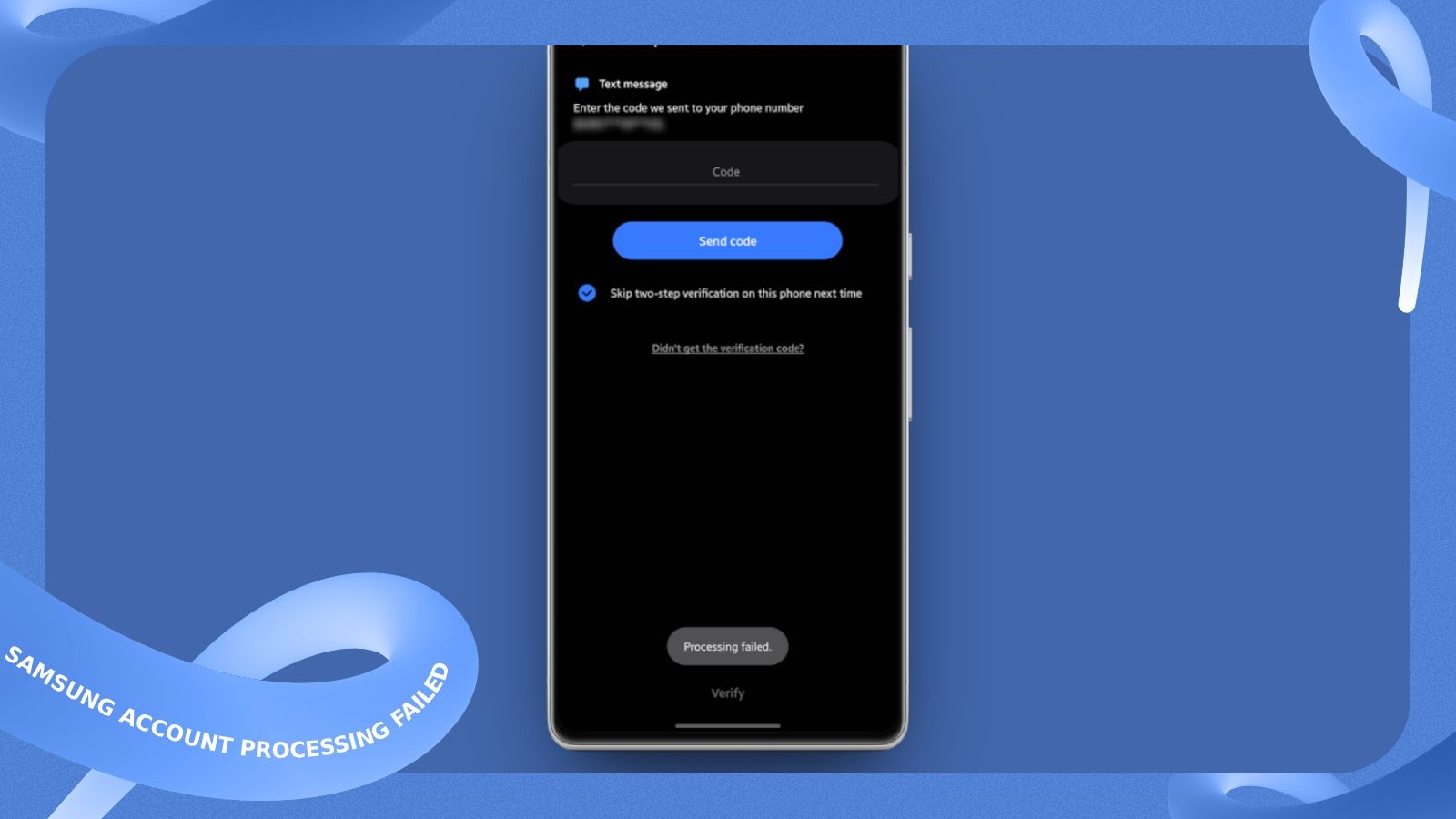
Anything that sits between your phone and the sign-in server can trigger the error. An active VPN app or an ad blocker is the most common culprit, because it can interfere with the authentication request.
Reset Private DNS and Fix the Clock
Start here, since a blocked connection or a wrong date stops the sign-in before it begins.
- Open Settings and tap Connections, then More connection settings.
- Tap Private DNS and switch it to Automatic.
- Go back to the main Settings screen and tap General management.
- Tap Date and time and turn on Automatic date and time.
Before you retry: turn off any VPN, tunneling tool, or ad blocker running on the phone. Then try signing in again.
Clear the Account Cache and Update
If the error is still there, the Samsung account app itself may be holding corrupted temporary files. Clearing its cache removes them without touching your account or your files.
- Open Settings and tap Apps.
- Find
Samsung accountin the list and open it. - Tap Storage, then Clear cache.
- Open the
Galaxy Store, tap Menu, choose Updates, and install anything pending. - Restart the phone so it sends a fresh sign-in request.
Choose Clear cache rather than Clear data. The cache option keeps your settings in place, which is why this step is safe to try early.
If the Error Keeps Coming Back
Some users still see the failure after all of the above. In that case, switch off Developer Options in your main settings menu and try the sign-in once more. Do this last, since it changes a system setting you may have turned on for a reason.
Follow Hashlytics on Bluesky, Facebook, LinkedIn , Telegram and X to Get Instant Updates