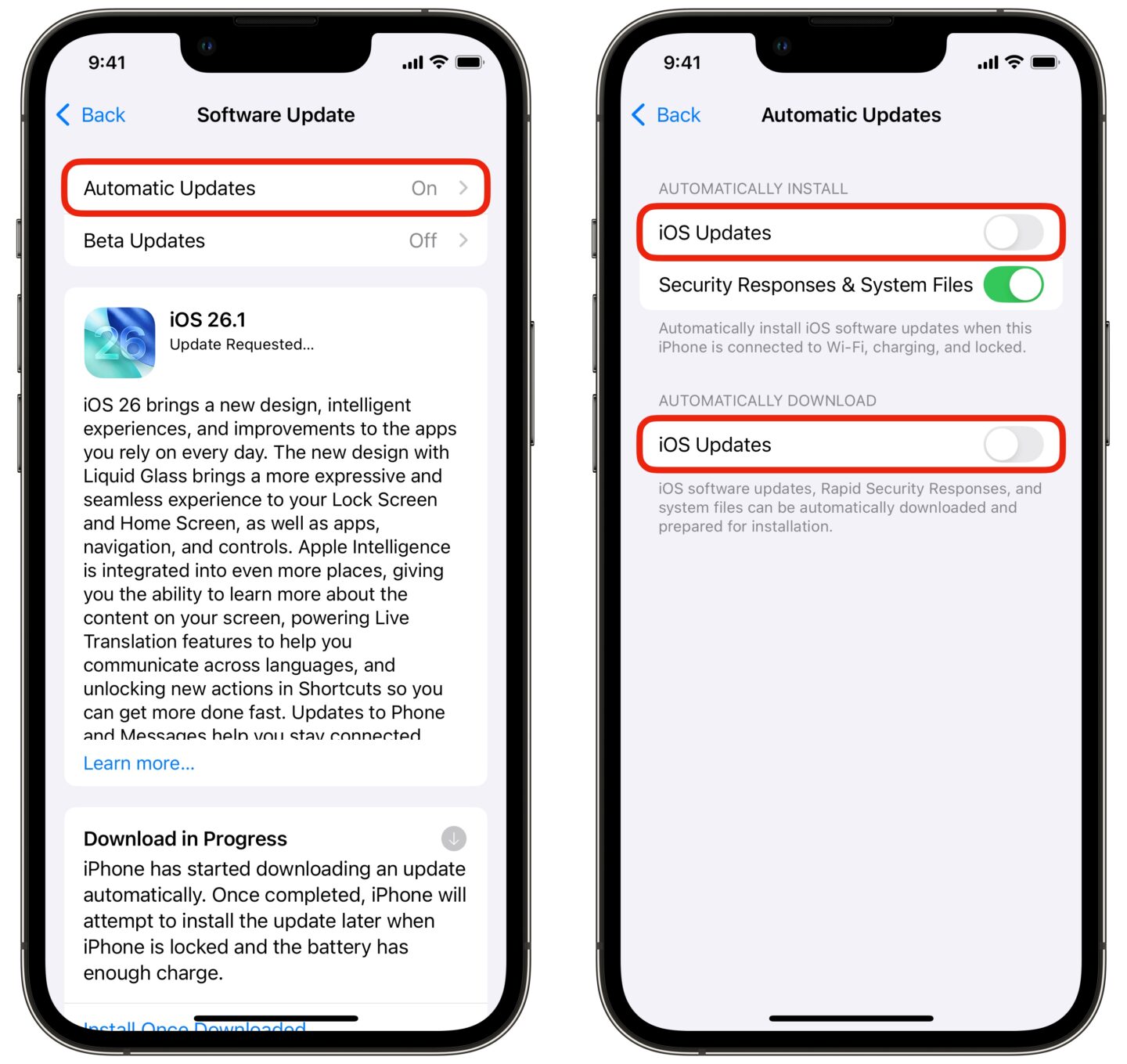
The relentless march of progress, or at least Apple’s version of it, can feel a little too relentless sometimes. Faced with the prospect of iOS 26 and its potential quirks, many iPhone users are looking for ways to postpone the inevitable update. Luckily, there’s a relatively simple workaround to keep those update prompts at bay, at least for a little while longer.Why resist the siren song of the latest operating system? Maybe you’re perfectly happy with the stability and speed of your current iOS version. Or perhaps you’re wary of potential bugs or compatibility issues that often accompany early releases. Whatever the reason, it’s your phone, and you should have control over when (or if) you upgrade.
Apple, in their quest for universal adoption of the newest features, doesn’t always make it easy to avoid updates. As _Davidsmith_ pointed out on Mastodon, Apple’s persistence in pushing updates can become quite aggressive. The good news is that there’s a way to regain some control.
Even better news: delaying the update to iOS 26 doesn’t mean you’re sacrificing security. Apple typically provides security updates for older versions of iOS for a few years, ensuring your device remains protected even if you’re not running the latest and greatest.
The core of the trick involves leveraging Apple’s beta program. By enrolling in the beta program and then strategically “downgrading” to a stable release, you can effectively block the nagging update prompts. Here’s the breakdown:
- Enroll in the Beta Program: Head over to the Apple Beta Software Program website and sign up with your Apple ID.
- Install the Beta Profile: Follow the instructions to download and install the beta profile on your iPhone. This will allow your device to receive beta updates.
- Install a Beta Version: Go to Settings > General > Software Update and install the latest available beta version of iOS.
- Remove the Beta Profile: Once you’re running the beta, remove the beta profile from your iPhone (Settings > General > VPN & Device Management > iOS Beta Software Profile > Remove Profile).
By removing the beta profile, your iPhone will no longer receive beta updates. It will, however, still see the “official” release of the iOS that matches the build number of the last beta you installed. Since you are already on that build, it won’t prompt you to update.
A Word of Caution
This method is a temporary solution. Eventually, you’ll need to update. Keep in mind that older iOS versions may eventually lose support for newer apps and features. And, of course, when you eventually upgrade to a new iPhone, it will come pre-loaded with the latest operating system. Also, while this method should prevent the automatic downloading of the update, keeping an eye on your storage is a good idea just in case.
This approach is about control and timing, not permanent avoidance. It gives you the breathing room to upgrade on your terms, when you’re ready.
While this trick offers a temporary reprieve from the iOS update cycle, it highlights a larger debate about user control and software updates. The tension between Apple’s desire for a unified ecosystem and users’ desire for autonomy is likely to continue. Whether Apple will further tighten the reins or offer more granular control remains to be seen, but for now, this workaround provides a valuable tool for those who prefer to dictate their own update schedule.