
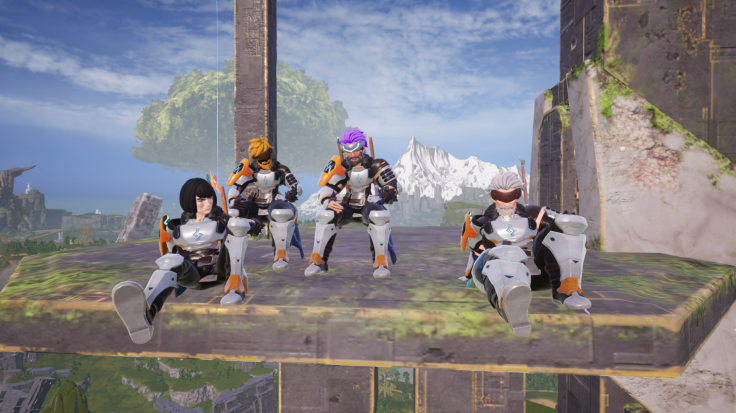
Getting multiplayer running smoothly does require a few steps, though. Understanding how invite codes work, when to use dedicated servers, and what to do when things break is the difference between seamless co-op and frustrating disconnects. Here’s everything you need to know.
Which Platforms Can Play Together?
Crossplay works across these versions:
- Steam
- Xbox Series X/S
- Xbox PC (via Microsoft Store or Game Pass)
- PlayStation 5
- Mac
The critical thing: everyone needs to be running the latest game version. Even one person on an older build can cause connection issues for the entire group. Check for updates before inviting friends.
Co-Op Worlds vs Dedicated Servers
Palworld gives you two multiplayer options, and choosing the right one depends on your group size and how long you plan to play together.
| Feature | Co-Op Worlds | Dedicated Servers |
|---|---|---|
| Player Limit | Up to 4 players | Up to 32 players |
| Host Requirement | Host must stay online | Always online, independent login |
| Setup | Invite code, quick start | Permanent world, more config |
| Best For | Quick sessions with close friends | Larger communities, long-term play |
Co-op worlds are dead simple if you just want to grab a couple friends for a few hours. Dedicated servers are the way to go if you’re building a persistent community where people log in at different times.
How to Join a Co-Op World
Your friend is hosting and wants you to join? Here’s the process:
- Launch Palworld
- Select “Join Multiplayer Game (Invite Code)”
- Enter the invite code your friend provided
- Wait for the connection to complete
That’s it. You’ll load into their world and start playing immediately.
One important note: invite codes are temporary. Every time your friend exits or restarts the world, a new code generates. You’ll need to ask for a fresh code to reconnect next time. This is a limitation of co-op worlds, but it keeps things simple for smaller groups.
How to Host a Co-Op World
Want to be the host? It’s equally straightforward:
- Create or load a world
- Enable “Multiplayer” in the world settings
- Turn on crossplay if the option appears
- Start the world
- Open the Options menu
- Share the generated invite code with friends
Just remember: you have to stay online for your friends to keep playing. If you exit, they get kicked and can’t play until you bring the world back online.
Common Connection Problems and Fixes
Invite code stopped working? The host probably restarted the world. Ask for a new code.
Crossplay isn’t connecting? Make sure everyone has the latest game update. Version mismatches are the most common culprit after major patches. Also double-check that crossplay is actually enabled in settings and that everyone has a stable internet connection.
Dedicated server not showing up? Refresh the server browser, confirm the server is running, and check if there’s a password requirement or filter blocking it from view.
Pro Tips for Smooth Multiplayer
Keep your game updated on all devices. Small patches happen regularly, and they matter for compatibility. If you’re running a regular group, use a dedicated server instead of relying on invite codes. It’s more stable and way less annoying than generating new codes every time someone logs off.
Stay in the same Guild with your co-op partners so you can share bases and resources. And before inviting friends to join, agree on world settings ahead of time so there are no surprises. A reliable internet connection helps too, obviously.
With proper setup, Palworld’s crossplay transforms it into a genuinely accessible cooperative experience. Start small with a co-op world, upgrade to a dedicated server if your group grows, and you’re golden.
Follow Hashlytics on Bluesky, LinkedIn , Telegram and X to Get Instant Updates