
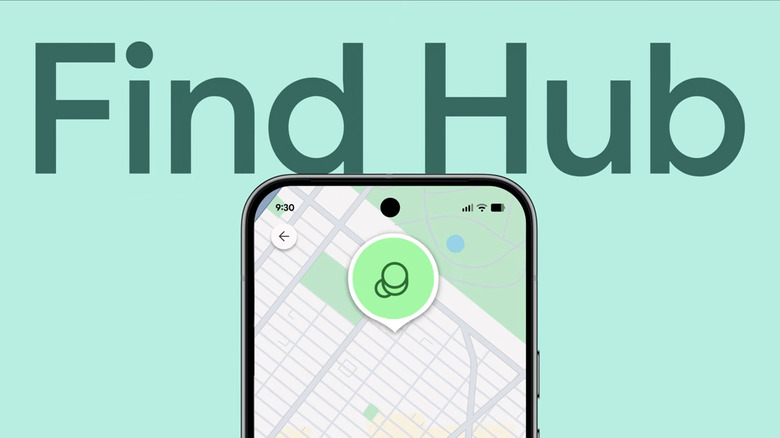
Here’s how to set it up before you need it, and what to do once your phone is actually gone.
Getting Your Phone Ready Before It’s Lost
Find Hub only works if your phone was configured correctly beforehand. Most of these settings are on by default once you sign into a Google account, but they’re worth confirming now rather than discovering a gap mid-crisis.
- Keep your phone updated with the latest software
- Open Settings, tap your name, then your profile info, and verify you’re logged into a Google account you still have access to
- Confirm your email address is correct on that account
- Go to
Locationin Settings and switch it On - Navigate to
SecurityorSecurity and Privacy - Find
Find HuborLost Device Protection > Find My Mobileand make sureAllow device to be locatedis ticked - Switch on
Find your offline devicesorOffline Finding
Offline finding is the setting most people skip, and it’s the one that matters most. It requires a PIN, pattern, or password on your phone, along with Bluetooth and Location both enabled. Once active, your phone quietly participates in Google’s crowdsourced Find Hub network, using encrypted, anonymous relays through nearby Android devices to report its location even when it has no signal of its own.
Newer Pixel phones take this further. With With network in busy places only or With network everywhere enabled, some models can still be located for several hours after the battery has died, a detail that has saved more than a few recoveries in crowded transit stations or lost-and-found scenarios where the phone powered off before anyone found it.
Tracking the Phone Down
Once your phone goes missing, open the Find Hub app on another Android device or Wear OS watch, or visit the Find Hub website from any browser. Sign in with the same Google account linked to your missing phone.
- Go to the
Devicestab to see your phone’s last known location on the map - If it’s within range, tap Find nearby for directional guidance, or launch Maps for turn by turn directions
- Tap Play a sound to make it ring at full volume, even if it was set to silent
If the map only shows a last known spot instead of a live location, that’s still useful information. Note it down. It’s often enough for police to work with if the phone was stolen rather than simply misplaced.
When Recovery Isn’t Looking Likely
If the phone is gone for good, or you suspect it was stolen, the priority shifts from finding it to protecting what’s on it.
Tap Mark as lost from the Find Hub interface. This locks the device with your existing PIN, pattern, or password. On Android 17 and up, phones with fingerprint or Face Unlock get an added layer, since protecting your data this way also triggers two-step verification before anyone can get past the lock screen. You can add a contact number and a short message that displays right on the lock screen, letting an honest finder reach you.
That message feature comes with a real tradeoff. Scammers have been known to exploit this exact feature, posing as helpful strangers to trick owners into unlocking a stolen phone remotely. Keep any message vague. A phone number is enough. Don’t offer a reward or urgency that pressures you into acting fast.
If the phone was stolen and not just lost, Find Hub only handles half the problem. Call your carrier and ask them to suspend the SIM and blacklist the IMEI number. That stops the device from connecting to any network, even if the thief swaps in a new SIM card, which software locks alone can’t prevent.
As a last resort, Factory Reset from Find Hub wipes everything permanently. Two things worth knowing before you tap it: once erased, you lose the ability to track the phone through Find Hub entirely, and the reset itself may not complete until the phone next connects to the internet. This is the final move, not the first one.
Hashlytics Take
The setting most people never touch is offline finding, and it’s the one doing the real work when a phone dies in a crowd or gets tossed somewhere with no signal. Most guides treat Find Hub as a single button you press after the fact. The actual value is in the five minutes of setup done today, long before anything goes missing. If you’ve never checked whether offline finding is on, that’s worth doing right now, not after the next incident.
Follow Hashlytics on Bluesky, Facebook, LinkedIn , Telegram and X to Get Instant Updates