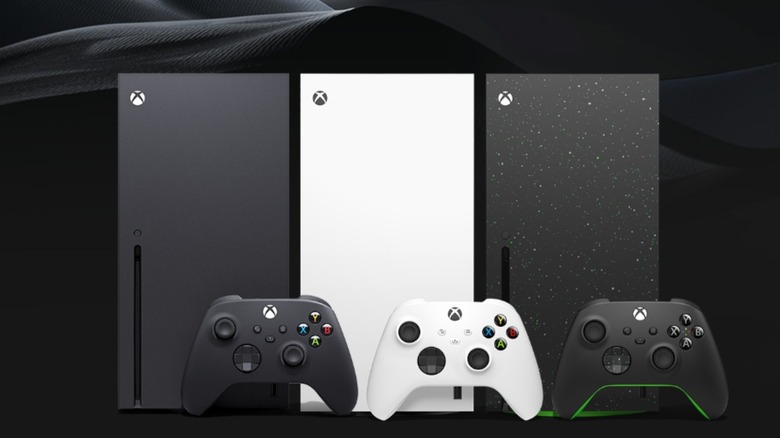
The Xbox Series X|S is a powerful machine, but five years into its lifecycle, squeezing every ounce of performance requires smart configuration. While its successor, codenamed Project Helix, promises greater power and PC game integration, it won’t arrive until at least 2028. Four straightforward tweaks can noticeably improve your gaming experience without spending extra money.
1. Switch to Ethernet for Faster, More Stable Connections
If you’re using Wi-Fi, upgrading to a wired Ethernet connection delivers immediate benefits: faster speeds, lower latency, and better reliability.
This matters more on Xbox than other consoles because the Series X|S supports only Wi-Fi 5 (802.11ac), the same standard as the PS4 Pro and Nintendo Switch. By contrast, the PS5 supports Wi-Fi 6, and the PS5 Pro uses Wi-Fi 7. While theoretical speeds differ, real-world performance in congested wireless environments heavily favors a wired connection.
How to connect: Plug an Ethernet cable from your router directly into the Ethernet port on the back of your Xbox. The console will automatically prioritize the wired connection over Wi-Fi. You can verify this by going to Settings > General > Network settings and checking that it shows “Wired” as your connection type.
2. Enable FPS Boost and Auto HDR for Backwards-Compatible Games
The Xbox Series X|S excels at playing older games with enhanced performance. Many titles from previous generations automatically receive FPS Boost (doubling or quadrupling frame rates) and Auto HDR (adding HDR to games that didn’t originally support it), but some require manual activation.
Step-by-step:
- Open
My games & apps - Select the game you want to enhance
- Press the menu button (three horizontal lines)
- Navigate to
Manage game and add-ons - Select
Compatibility options - Toggle
FPS boostandAuto HDRon or off
Important notes: Not all games support these features. If the options are greyed out, that game doesn’t have FPS Boost or Auto HDR available. Some games with FPS Boost may disable it by default because it reduces resolution to maintain performance—you can re-enable it if you prioritize frame rate over resolution.
Unlock 120 FPS: If your TV or monitor supports 120Hz refresh rates, enable it system-wide by going to Settings > General > TV & display options > Video modes, then check Allow 120Hz. Compatible games will then run at up to 120 FPS.
3. Prioritize Performance Mode Over Graphics Mode
Many modern games offer a choice between Graphics mode and Performance mode. Graphics mode maximizes visual fidelity through ray tracing and dynamic lighting but typically caps gameplay at 30 FPS. Performance mode sacrifices some visual polish to target 60 FPS or higher.
When to use Performance mode: For fast-paced titles requiring precise controls — online multiplayer, action games like Cyberpunk 2077, or competitive shooters — Performance mode is the smarter choice. You’ll lose 4K resolution and some graphical effects, but fluid frame rates dramatically improve responsiveness.
How to change: This setting lives inside individual games, usually under Graphics or Display in the game’s options menu. The exact location varies by title, but it’s almost always in the first few pages of settings.
4. Manage Storage to Maintain Console Speed
The base Xbox Series X includes 1TB of storage (actually around 802GB usable after system files). Games like Call of Duty can demand 200+ GB, and Xbox Storage Expansion Cards start around $150-200, making external storage expensive.
Why storage affects performance: SSDs slow down as they fill up because the drive has less free space to efficiently manage data writes and wear leveling. Performance degradation typically becomes noticeable above 75-80% capacity.
Storage best practices:
- Keep at least 15-20% of your internal SSD free for optimal performance
- Series X|S-optimized games must run from the internal SSD or official Expansion Card—they won’t work from external USB drives
- Move older Xbox One/360 games to external USB storage to free up internal space
- Regularly uninstall games you’ve finished—you can always redownload them later
How to move games: Press the menu button on a game in My games & apps, select Manage game and add-ons, then Move. Choose your destination drive. Note that moving large games can take 10-30 minutes depending on size.
Worth the Effort
These four adjustments cost nothing and require only minutes to implement, yet they meaningfully extend your Xbox’s performance potential during the long wait for next-generation hardware. The Ethernet cable is the only potential purchase, and a basic Cat5e or Cat6 cable costs under $10.
Follow Hashlytics on Bluesky, LinkedIn , Telegram and X to Get Instant Updates