Addressing Wi-Fi and Bluetooth Conflicts in Windows 11
Many Windows 11 users have reported frustrating experiences with Bluetooth devices, such as earbuds disappearing from Quick Settings or audio lagging. Intel has confirmed these problems stem from conflicts when Wi-Fi and Bluetooth operate concurrently on the same wireless channel. The company’s latest wireless driver updates are specifically designed to improve the coexistence of these two crucial technologies.
The updated drivers are expected to reduce audio stuttering in Bluetooth headphones and earbuds, particularly when Wi-Fi is actively in use. Similarly, Wi-Fi speeds should remain stable even when Bluetooth peripherals, including mice, keyboards, controllers, or headsets, are connected. Intel also highlighted that these April 2026 updates bring overall system stability improvements for both Wi-Fi and Bluetooth connections.
Understanding Driver Availability for Intel Wireless Updates
While Microsoft typically distributes drivers automatically via Windows Update, there’s a caveat for users seeking the very latest Intel wireless drivers. Many Original Equipment Manufacturers (OEMs) do not promptly release the newest drivers, often reserving them for premium products like the XPS 13 or Surface Pro. This can leave a segment of users waiting for crucial stability fixes.
Therefore, for immediate access to the latest improvements, users may need to bypass the standard Windows Update process. This ensures direct installation of Intel’s confirmed fixes, rather than relying on OEM distribution channels.
How to Update Intel Wireless Drivers for Windows 11
To ensure your system benefits from Intel’s latest Wi-Fi and Bluetooth coexistence improvements, you can manually update your wireless drivers using Intel’s dedicated tool.
- Open your web browser and navigate to the Intel Driver and Support Assistant tool download page.
- Locate and click the Download Now button to download the installer for the tool.
- Once the download is complete, run the installer file. Follow the on-screen prompts to install the
Intel Driver and Support Assistant. - After installation, open the
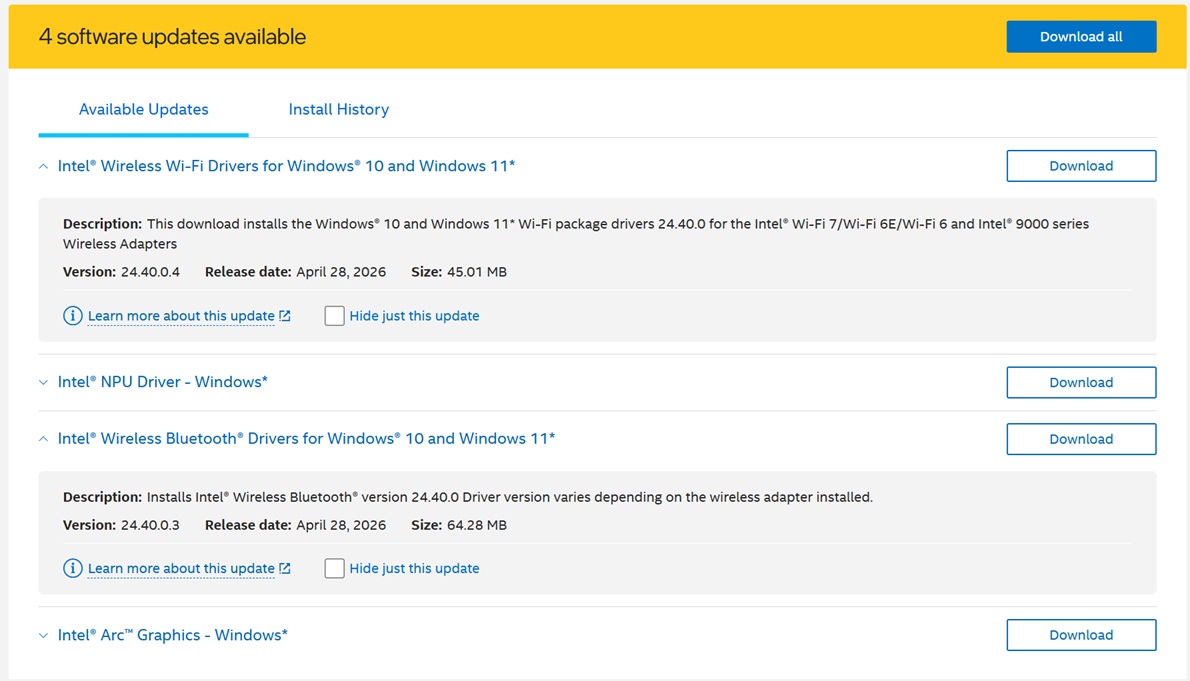
Intel Driver and Support Assistantapplication. - The tool will automatically scan your system for outdated Intel drivers. Review the scan results for any recommended Wi-Fi or Bluetooth driver updates.
- Select the recommended updates and click the Download or Install button to apply them to your system.
- Follow any further instructions, which may include restarting your PC to finalize the driver installation.
Note: The new Wi-Fi driver is version v24.40.0, and the Bluetooth driver is v24.40.0.3. These versions include a specific patch to improve coexistence between Bluetooth and Wi-Fi.
Microsoft’s Broader Commitment to Windows 11 Stability
Beyond Intel’s specific driver updates, Microsoft has also acknowledged broader reliability issues affecting wireless connections in Windows 11. The company recently confirmed its awareness of unreliable OS driver updates, which have contributed to operating system-level crashes.
Microsoft has pledged to enhance driver quality, reduce OS-level crashes, and collaborate with OEM partners and Independent Software Vendors (ISVs) to address stability concerns. This commitment extends to creating more stable connections for Bluetooth accessories, minimizing USB-related crashes, improving printer discoverability, and ensuring consistent device wake functionality.
Verifying Improved Wireless Coexistence and Future Outlook
By updating your Intel wireless drivers to the April 2026 versions, you should experience a noticeable improvement in the simultaneous operation of Wi-Fi and Bluetooth devices. The specific patch for coexistence aims to ensure that your Bluetooth audio remains smooth and Wi-Fi speeds stay consistent. Additionally, Intel has confirmed that the Advanced setting Channel-Load for AP selection is now set to Disable, alongside other general bug fixes.
This update represents a step towards a more dependable Windows 11 experience, aligning with Microsoft’s broader efforts to enhance the operating system’s reliability for critical functionalities like camera, audio, and USB connections.
Follow Hashlytics on Bluesky, LinkedIn , Telegram and X to Get Instant Updates