
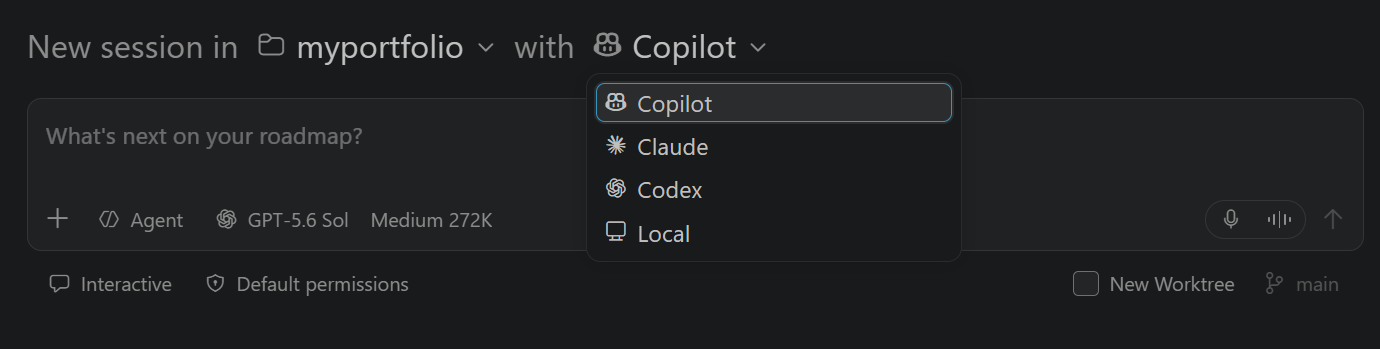
The key decision point is something called a Session Target. It sounds technical, but it’s really just asking: where should this AI run, and how much access should it have to my code? The answer determines everything about how the agent works, what it can do, and whether changes it makes go straight to your active codebase or into a safe sandbox.
The Five Harnesses Explained
VS Code offers five agent harnesses, each built for different scenarios. They all share the same chat interface you’re familiar with, but they differ in where they run, what tools they can access, and how they interact with your code.
| Harness | Runs Where | Code Access | Best For |
|---|---|---|---|
| Local | Your machine (VS Code extension host) | Current workspace | Quick interactive tasks using your existing tools and models |
| Copilot | Your machine (Agent Host) | Current folder or isolated Git worktree | General coding with GitHub Copilot SDK features and remote monitoring |
| Claude | Your machine | Current folder or isolated Git worktree | Anthropic’s agent capabilities with slash commands and permission controls |
| Codex | Your machine | Current folder or isolated Git worktree | OpenAI’s Codex for interactive or background coding work |
| Cloud | Remote provider infrastructure | GitHub repository and pull request | Scoped tasks that run independently and benefit from team review |
The Local Harness: Keep Everything Close
Start here if you want the agent to use VS Code’s own tools and any model you’ve configured locally. The Local harness runs in your extension host, giving it access to your entire current workspace. It’s the fastest for interactive work because there’s no network latency or authentication setup.
The tradeoff: the agent is tightly bound to your active workspace. It can’t run in the background, and it can’t continue working if you close VS Code. Use this for quick coding tasks where you want immediate feedback and control.
Copilot and Claude: Background-Capable Agents
Both Copilot and Claude run on your machine but in a separate Agent Host, which means they can keep working even when VS Code closes. This matters when you’ve asked an agent to refactor a large codebase or investigate a complex bug.
Copilot stands out for remote control. You can monitor and steer sessions from GitHub.com or your phone. It includes a research agent (available in VS Code Insiders) that investigates topics and generates detailed reports with citations. Copilot also supports background operations across multiple windows.
Claude offers unique slash commands for managing subagents, configuring lifecycle hooks, handling pull request reviews, and running security analysis. If you’re heavily invested in Anthropic’s Claude ecosystem, this harness gives you access to capabilities you won’t find elsewhere.
Code Isolation: Sandbox vs. Live
Before any local agent (Copilot, Claude, or Codex) starts working, you choose how it interacts with your code. Two options:
New Worktree creates a separate branch and worktree. The agent works in isolation, starting from your last committed state. This is safe for parallel work where you don’t want changes touching your active workspace. You review and integrate the results afterward.
Folder mode lets the agent work directly in your current folder. Changes appear immediately in your active workspace. Use this for small, interactive tasks where you’re watching along and want instant feedback.
Cloud Harness: For Team Workflows
The Cloud harness runs on the provider’s remote infrastructure and only accesses a specific GitHub repository and pull request. This is ideal when you’ve got a well-scoped task that doesn’t need your entire codebase, or when you want team review and approval before changes land on main.
It’s overkill for quick solo fixes but makes sense for larger refactors or when you’re working with a team that uses pull request workflows as their standard gate.
Claude’s Powerful Slash Commands
If you choose the Claude harness, you get access to specialized commands that extend what the agent can do:
/agents– Create and manage specialized Claude subagents/hooks– Configure scripts that run at key moments in the session lifecycle/memory– Open and edit persistent memory files for the project/init– Create a project memory file from scratch/pr-comments– Pull comments from an open pull request/review– Review changes in a pull request/security-review– Check pending changes for security issues
Switching Between Agents Mid-Stream
VS Code lets you change harnesses without losing context. Three moves worth knowing:
Hand off switches to a new session target and carries your entire conversation history and code context with it. Start with Local for quick iteration, then hand off to Claude when you need to go deeper.
Fork a session creates an independent branch point in your conversation. Useful when you want to explore multiple approaches to the same problem without losing your original thread.
Switch surfaces opens the same session in Chat view or the Agents window without changing the target. This is just UI, not a harness change.
How to Pick
Ask yourself three questions: Do I need this to run in the background? Do I need team review and pull request workflows? Do I need specialized agent features like subagents or security review?
No to all three? Start with Local. Need background work but no team workflows? Copilot or Claude. Need everything plus security and team gates? Cloud. It’s that simple.
The real power here is that you’re not locked into one choice. VS Code treats these as options you can switch between, test, and optimize as you learn what works for your workflow. That flexibility is what separates good AI tooling from the kind that frustrates you after week two.
Follow Hashlytics on Bluesky, Facebook, LinkedIn, Telegram and X to Get Instant Updates