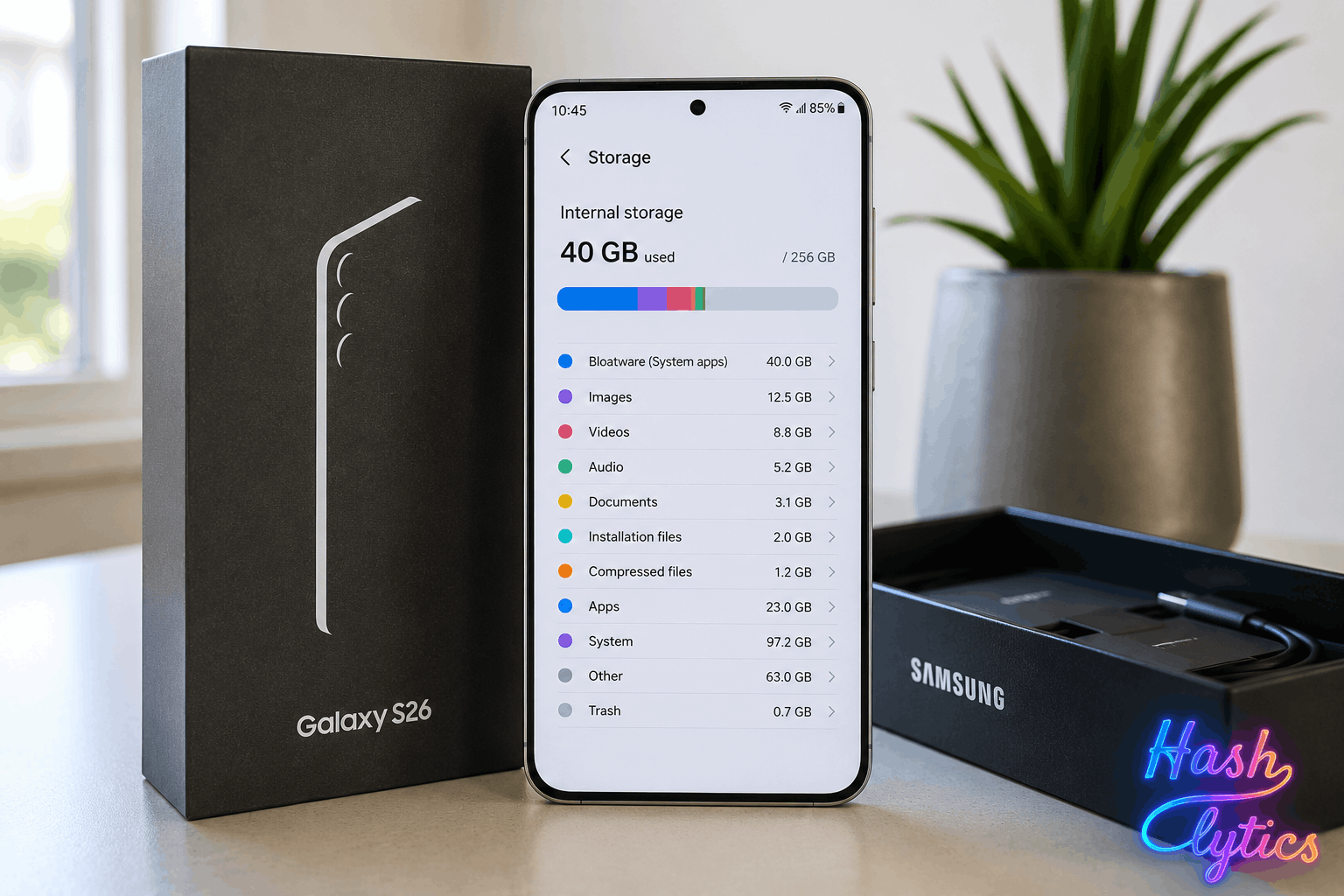
These pre-loaded apps from companies like Meta, Microsoft, Spotify, and LinkedIn aren’t optional during setup. They’re the result of commercial agreements between Samsung and other tech companies, not a cost reduction passed on to consumers. The good news: Samsung provides official methods to remove, disable, or hide most of them. Here’s how to reclaim your storage and customize your device.
What You’re Actually Dealing With
Not all pre-installed apps are created equal on Samsung devices. Google’s core apps — the Play Store and Google Play Services — are mandatory under the Mobile Application Distribution Agreement (MADA). That’s non-negotiable.
But Samsung also bundles third-party software: Facebook, Instagram, M365 Copilot, OneDrive, LinkedIn, Outlook, Link to Windows, and Spotify. These are where the bloat comes in.
The exact lineup varies by region and carrier. Samsung uses a Country Specific Code (CSC) to determine regional settings, network compatibility, and firmware distribution. An unlocked US model (XAA) will have different preloads than a carrier-branded version from AT&T or T-Mobile, or a European variant (EUX). This explains why your Galaxy S26 might look different from a friend’s, even if you bought them in the same country.
How to Remove Pre-Installed Apps
Samsung offers three official approaches: uninstall, disable, or hide. There’s no setup-time opt-out for third-party preloads, but you can act once the phone is in your hands. Do this early to prevent notifications and background processes from building up.
Method 1: Uninstall Completely
The most effective option when available. Not every pre-installed app can be uninstalled, but many third-party ones can.
- Press and hold the app icon on your home screen or in the app drawer
- Look for the Uninstall option in the pop-up menu
- Tap Uninstall and confirm your choice
Note: Essential system apps like Phone, Messages, Contacts, Gallery, and My Files cannot be uninstalled. They’re core to basic device functions.
Method 2: Disable Apps
If uninstall isn’t available, disabling is the next best option. It stops the app from running and removes it from view, though you can re-enable it later if needed.
- Open Settings
- Scroll down and tap Apps
- Select the specific app you want to manage
- Tap Disable if available, then confirm
Method 3: Hide Bloatware
For apps that can’t be uninstalled or disabled, hiding is your final option. The app stays on the device and might still run background processes, but it disappears from your home screen and app drawer.
- Open Settings
- Navigate to Home Screen
- Tap Hide apps
- Select the apps you want to hide
- Tap Done
What Actually Changes
Following these steps removes most unwanted preloads from sight and stops them from sending notifications or running constantly in the background. Your device will feel cleaner and respond faster.
But understand the limits: not all apps can be fully removed. Hiding them only addresses visibility, not their physical presence on the device. According to Android Authority’s testing, even after uninstalling, disabling, and hiding bloatware, preinstalled apps still occupy over 17GB of storage. Add system files on top of that, and you’re looking at significant storage consumed before you even take your first photo.
The takeaway? Samsung’s bloatware strategy is built in, not accidental. Managing it is possible, but expect to work within constraints rather than achieve a completely clean install.
Follow Hashlytics on Bluesky, LinkedIn , Telegram and X to Get Instant Updates