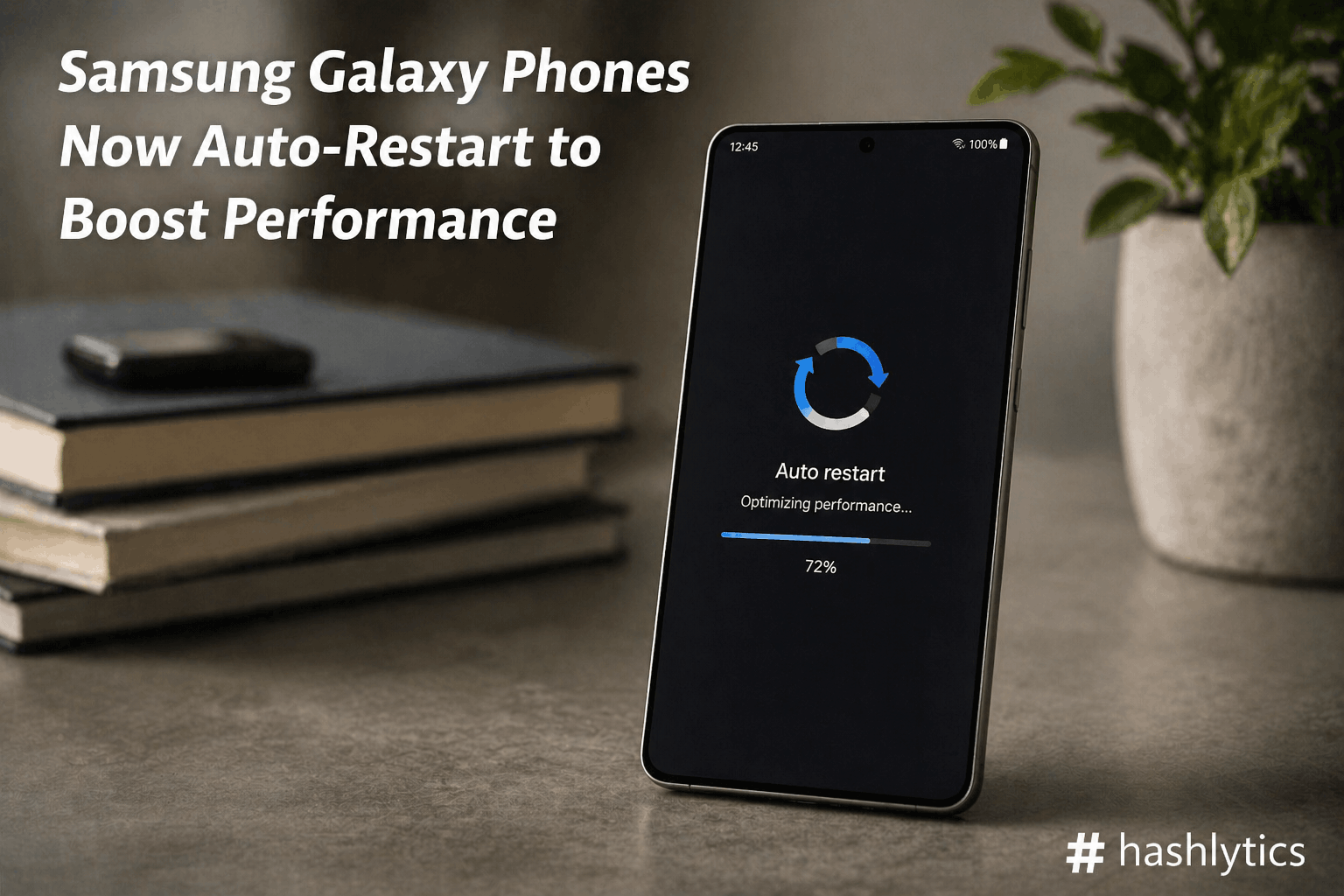
Auto Optimisation feature, available on models like the Galaxy S26 series, addresses a common complaint: phones slowing down over time due to background processes and cache buildup.
How Samsung’s Auto Optimisation Keeps Phones Running Smooth
Samsung’s approach to fighting sluggishness goes beyond manual fixes. The Auto Optimisation feature allows Galaxy smartphones to reboot themselves at preset intervals, typically when the device sits unused. According to Samsung, this proactive refresh clears temporary files, refreshes system memory, and stops background processes that degrade responsiveness.
The company recommends occasional automatic restarts to prevent freezing or lag, especially for heavy daily users. Unlike forcing a manual restart, this feature operates invisibly during off-hours, ensuring users never experience an interruption during active use.
Setting Up Automatic Restart on Your Galaxy Phone
Enabling this feature requires just a few taps in the device settings menu.
- Open the
Settingsapp on your Samsung Galaxy phone. - Scroll down and tap
Battery and Device Care. - Select the
Additional Caretab. - Find and select the
Auto Optimisationsetting. - Toggle the
Auto-restartfeature on. - Choose your preferred day(s) and time for the restart to occur.
Note: Samsung recommends scheduling restarts during hours when your phone is not in use, such as early morning or late night.
Safety Guardrails Built Into the Feature
Samsung has designed safeguards to prevent the auto-restart from disrupting critical functions. The device will only restart when specific conditions align: the screen is off, the phone is not actively in use, battery level exceeds 30 percent, and the SIM card lock is disabled. This combination ensures the restart never interrupts an active call, message, or other essential operation.
Additional Steps to Maintain Peak Performance
Beyond automatic restarts, Samsung users can implement several complementary strategies to keep their phones responsive.
- Use Device Care regularly: Samsung’s built-in
Device Caretool optimizes battery, storage, and memory. Activate it manually for a quick refresh or set it to run automatic optimizations. - Clear cache periodically: App-related cache accumulates with prolonged usage. Clearing it frees up storage and maintains responsiveness.
- Keep software updated: Install the latest Android and app updates to benefit from bug fixes, performance improvements, and security patches.
- Manage background apps: Limit apps, especially rarely used ones, from running in the background to conserve memory and battery life.
- Free up storage space: Nearly full storage often causes sluggishness. Delete unused apps, clear old files, or move data to cloud storage services.
Why This Matters for Long-Term Device Health
Smartphones accumulate performance debt over time. Regular maintenance through features like Auto Optimisation helps prevent the gradual decline that forces users to upgrade sooner than necessary. By automating what was once a manual chore, Samsung removes friction from device upkeep and extends the practical lifespan of its flagships.
For users who rarely think about phone maintenance, this feature operates silently in the background, delivering measurable improvements without requiring discipline or technical knowledge.
Follow Hashlytics on Bluesky, LinkedIn , Telegram and X to Get Instant Updates