What’s Actually Going Wrong
A failed update usually comes down to one of a handful of causes. The installation can get interrupted by a power drain or an accidental disconnect, the update file itself can be incomplete or corrupted, or an older iPhone model may simply not play well with the latest iOS build. Battery issues in particular have a way of compounding update problems rather than just draining your day faster. Apple’s own servers can also bottleneck things during a high-traffic rollout, stalling the download before it ever reaches your device.
Before You Assume the Worst
A slow progress bar on a major iOS upgrade isn’t automatically a failure, especially on older hardware. Keep the iPhone plugged in, give it time, and resist the urge to force-restart too early since that can turn a slow update into a genuinely broken one.
- Check update status under Settings, General, Software Update
- If the update downloaded but won’t install, go to Settings, General, iPhone Storage, find the update, and tap Delete Update
- Return to Software Update and redownload over a stable Wi-Fi connection
When the iPhone Won’t Budge
If the device is genuinely frozen, a force restart is the first real fix, and it won’t touch your data. Press and release Volume Up, then Volume Up Down, then hold the Side button until the Apple logo shows up.
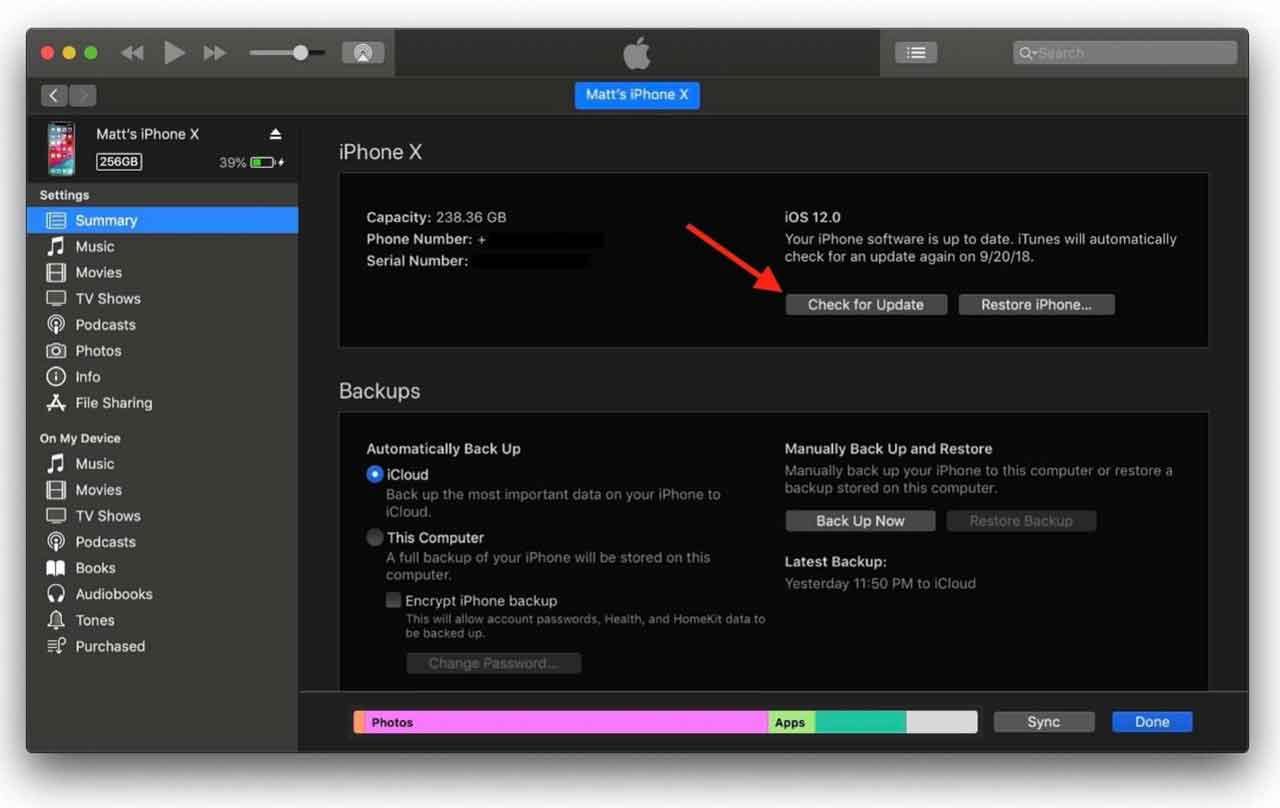
If that doesn’t hold and over-the-air updates keep failing, connect the iPhone to a computer instead. On a Mac running Catalina or later, open Finder. On Windows, use the Apple Devices app, much the same way Windows users now rely on it after Quick Share picked up AirDrop compatibility on the other side of the ecosystem. Select the iPhone, click Check for Update, and let it run.
If Nothing Else Works
For boot loops and Apple logo freezes that survive every standard fix, dedicated repair software like Dr.Fone System Repair exists for exactly this scenario, claiming to resolve more than 150 iOS issues including black screens, frozen devices, and recovery mode loops on iPhone 18 series devices running iOS 27 or 26. It offers a Standard Repair mode that avoids touching your data, plus an Advanced Repair option for worse cases where data loss is a real risk.
The process is straightforward:
- Open Dr.Fone, go to Toolbox, then System Repair, and connect the iPhone
- Choose iOS Repair, then Standard Repair to keep your data intact
- Put the iPhone into Recovery Mode when prompted, so Dr.Fone can pull the right firmware
- Click Repair Now and leave the iPhone connected until it finishes
If none of this resolves things, check Apple’s compatibility list for your specific model. A full restore through Finder or the Apple Devices app is the last resort, since it wipes the device clean, which is exactly why backing up before any major update is worth the extra five minutes. Apple Support is still there if the problem outlives every fix on this list.
Follow Hashlytics on Bluesky, Facebook, LinkedIn, Telegram and X to Get Instant Updates